One-time transfer vs continuous folder sync
People who search for how to sync files between Windows and Mac are usually describing one of two different jobs, and mixing them up is the most common reason a chosen tool feels wrong.
A one-time transfer moves a copy from one computer to the other and is then finished: a PDF, a photo export, an installer. Nothing needs to stay linked afterwards. Continuous two-way folder sync keeps a working folder identical on both computers: you edit a document on the Mac, and the changed file shows up on the Windows PC without anyone pressing send, and the reverse.
Transfers are best served by simple tools that need no account and no setup. Sync needs something that watches the folder, tracks changes, handles the case where one computer is asleep, and does not silently overwrite your work. The six options below cover both jobs, and the comparison table shows where each one stops being the right tool.
If you already know you want a folder that stays in step automatically, the step-by-step walkthrough is in how to automatically sync a folder between Windows and Mac. This page is the wider map: which approach to pick in the first place.
Six ways to sync files between Windows and Mac
1. SMB network share. Both Windows and macOS can use the SMB file-sharing protocol. You enable sharing on one computer and connect to it from the other by name or address, then drag files across. It needs no extra software and works well for occasional use on one home or office network. It is a shared location, not a sync: there is nothing that copies files for you, and it generally only works while both computers can reach each other on the same network or through a VPN.
2. LocalSend. A free, open-source app for sending files between nearby devices over the local network, with no account. According to its official site it works on the local network and does not need internet access to transfer. It is a very good one-time transfer tool, and it is not a folder sync tool. We cover its limits across networks in does LocalSend work over the internet.
3. Cloud drives (iCloud Drive and OneDrive). A cloud drive stores your files on the provider's servers and mirrors them to each signed-in device. iCloud Drive is built into macOS and has a Windows app; OneDrive is built into Windows and has a Mac app. They do keep folders in step across networks, but your files live in that provider's storage plan, and each drive works most smoothly with its home operating system, so the second platform is the more awkward half.
4. Syncthing. A free, open-source continuous sync tool. Devices are connected by device ID, and Syncthing's documentation says it uses public relays when a direct connection is not possible, and recommends forwarding a port for best performance. It is very capable and mature, and it expects you to be comfortable with its configuration.
5. Resilio Sync. A long-established sync product that connects devices directly where it can and falls back to a relay when that fails. Resilio's own materials list Windows, macOS and Linux clients, and say the free download includes features that used to require the paid Sync Pro plan.
6. Foldpair. Synchronizes selected folders between your own devices through an authenticated temporary relay, so the computers do not need to be on the same network and Foldpair can sit alongside an existing VPN. It also sends one-off files and syncs the clipboard between your own devices. It is not a cloud-storage product: the relay only carries encrypted sync data.
Side-by-side comparison
The table sticks to criteria you can check yourself. Competitor entries are deliberately general; confirm the details in each product's own documentation before you commit.
| Question | SMB share | LocalSend | iCloud / OneDrive | Syncthing | Resilio Sync | Foldpair |
|---|---|---|---|---|---|---|
| Best job | Browsing and copying on one network | One-time transfer | Folders mirrored through a cloud account | Continuous folder sync | Continuous folder sync | Continuous folder sync and one-off sends |
| Computers on different networks | Only with a VPN or equivalent | Designed for the local network | Yes, through the provider's servers | Yes; direct if reachable, public relays otherwise | Yes; direct if reachable, relay fallback otherwise | Yes; designed for different networks and compatible with an existing VPN |
| Other computer is off or asleep | No access until it is back | Both devices must be present | Files are already in the cloud | Needs both devices online at the same time to sync | Needs both devices online at the same time to sync | Changes wait on the relay in encrypted form and are delivered when the device returns, within the retention period |
| Encryption of file contents | Depends on configuration and network | Encrypted on the local network | Provider-managed; check each service's settings | TLS between devices | Encrypted between devices (see the Resilio comparison) | Folder contents encrypted on the device with AES-256-GCM before they reach the relay |
| Clipboard between the two computers | No | No | Not a feature of the drive itself | Not a documented feature | Not a documented feature | Text and images between your own devices |
| Large changed files | Whole file is copied | Whole file is sent | Provider-specific | Changed blocks (see Syncthing docs) | Check Resilio's documentation | FastRsync binary delta when an earlier version is known |
| Windows and Mac clients | Built in to both | Yes | Built in to one, app for the other | Yes | Yes | Yes; Windows, macOS (Apple Silicon and Intel) and Linux desktop clients |
| Cost | Free | Free | Free tier then paid storage plans | Free, open source | See vendor pricing | Free plan, plus paid Pro and Team plans; no credit card to download |
Read the table by job rather than looking for one winner. If every row you care about is satisfied by a built-in or free tool you already have, there is no reason to add another.
When a one-time transfer is enough
If you are moving a file once and both computers are on the same Wi-Fi, a local tool is the quickest route. LocalSend is a good example: no account, no cloud, and it works without internet access according to its official site. An SMB share is just as valid when you want to browse the other computer's disk and pick files.
When the two computers are on different networks, the situation changes: a plain SMB share is not reachable, and a local-network tool cannot discover the other device. Foldpair's send feature covers that case: you choose a file and a destination device, and the file goes through the relay in encrypted form.
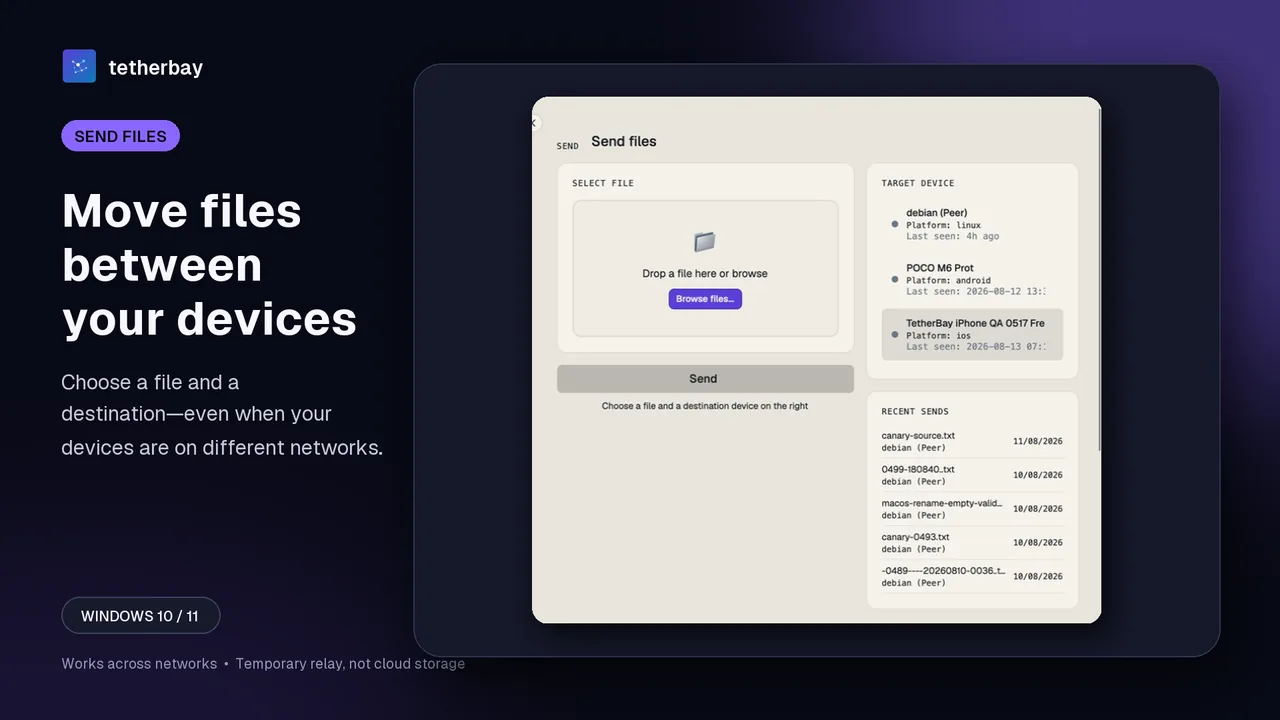
Android is supported for one-off file transfers only, with an inbox and outbox; full folder sync is not part of the Android app today. There is no publicly installable iOS release yet.
When you need continuous two-way folder sync
Continuous sync fits a working folder you open on both computers: a project, a notes vault, a design handoff directory. The key questions are what happens when the other computer is offline, whether two devices on different networks can still reach each other, and whether you must configure your router.
With Foldpair, you choose the folders to synchronize and the participating devices. Changes made while another device is offline wait on the relay in encrypted form and are delivered when that device comes back online, within the relay retention period. For large changed files, the desktop app can upload a binary delta instead of the whole file when an earlier version is known.
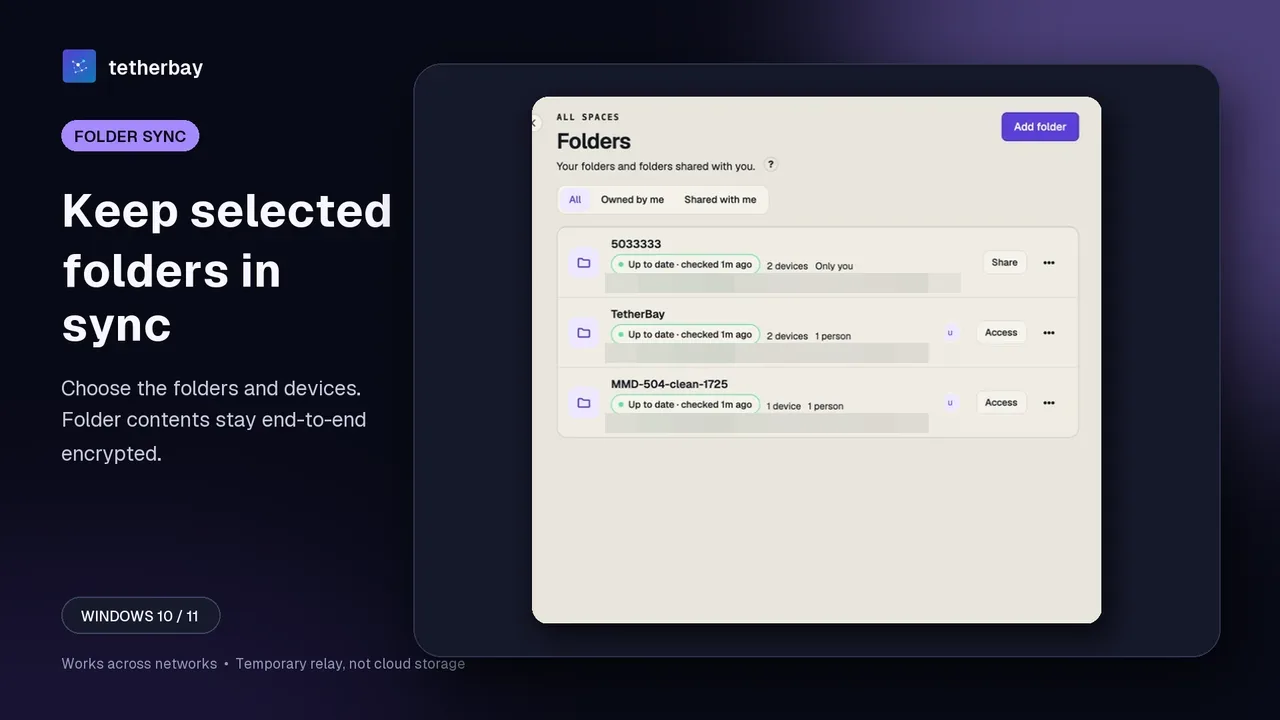
If you want to share a folder with another person rather than only your own devices, each member is an Owner, Editor or Reader, and a Reader can read and download but cannot upload or edit. The folder sharing help and the member roles page explain how this works.
For the full walkthrough of setting up a folder that stays in sync automatically, follow automatically sync a folder between Windows and Mac.
Clipboard between Windows and Mac
Many people say sync when they really mean the small things: a link, a snippet of text, a screenshot. Copying on the Mac and pasting on the Windows PC is faster than saving a file, sending it and opening it.
Foldpair's clipboard sync covers text and images between your own devices on every plan. Each device has its own clipboard switch, and members of a folder you share never receive your clipboard. Clipboard payloads are encrypted on the device with AES-256-GCM before relay transport.
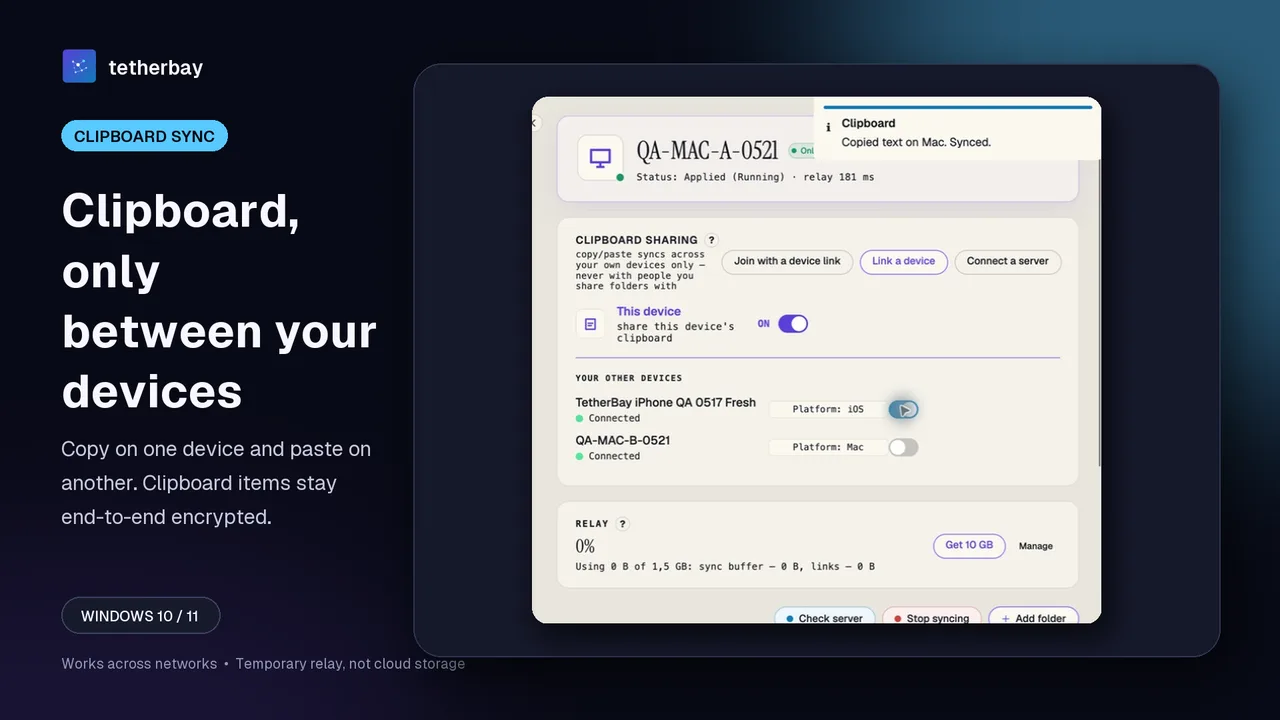
The relay cannot open encrypted file contents, but it does see file names and sizes, and for clipboard items the item type, source device and time. Read the encryption overview for details.
When to choose which tool
- Choose an SMB share when both computers are always on the same network and you want to browse and copy files without installing anything.
- Choose LocalSend for quick one-time transfers to a nearby device, with no account and no setup.
- Choose iCloud Drive or OneDrive when you are already paying for the storage, most of your devices belong to that provider's ecosystem, and you want files available in the cloud even when every computer is off.
- Choose Syncthing when you want a free, open-source, mature tool and you are comfortable configuring ports and device IDs, or happy to rely on public relays when a direct connection fails. When two devices can reach each other directly, data goes directly between them, which Foldpair does not claim to match.
- Choose Resilio Sync if you already use it or want its feature set; it is a long-established product with clients for Windows, macOS and Linux.
- Choose Foldpair when the two computers are usually on different networks, you want selected-folder sync without router configuration, you want your clipboard to follow you, and you want a free plan to start with.
Set up Foldpair on Windows and Mac
- Download Foldpair for Windows and for macOS from the download page, and install it on both computers.
- Sign in on both computers and pair them. The device pairing help shows the steps.
- On one computer choose Add folder and pick the folder you want to keep in sync.
- Start with a small test file: add it on one computer and check that the file itself, not only a status message, arrives on the other. Keep a separate backup of anything irreplaceable.
- Once the test file arrives, move your real working files in, and use Check sync status if a folder looks stuck.
Frequently asked questions
What is the easiest way to sync files between Windows and Mac?
For a single file on the same Wi-Fi, a local tool such as LocalSend or a built-in SMB share is the easiest. To keep a folder identical on both computers, install a sync app on both, such as Foldpair, Syncthing or Resilio Sync, and select the folder.
Can I sync files between Windows and Mac without being on the same network?
Yes, with a tool built for it. Foldpair is designed to work across different networks and is compatible with an existing VPN. Syncthing and Resilio Sync can also connect across networks, using direct connections where possible and relays otherwise. A plain SMB share or LocalSend is meant for one local network.
Do I need cloud storage to sync a folder between Windows and Mac?
No. Cloud drives are one option, but Foldpair's relay is not a cloud-storage product: it carries encrypted sync data between your devices and holds undelivered changes for a limited time. Your working copies stay on your own computers.
Can I copy and paste between Windows and Mac?
With Foldpair, yes: clipboard sync covers text and images between your own devices on every plan, with a separate switch for each device. Folder members never receive your clipboard.
What happens if one computer is turned off?
Changes made while another device is offline wait on the Foldpair relay in encrypted form and are delivered when that device comes back online, within the relay retention period.
Is it safe to try on my real files?
Start with a small test file, confirm it arrives intact on the other computer, and keep a separate backup of irreplaceable data. Sync is not a backup: a deletion or a bad edit can sync too.
Related guides and comparisons
Sources and related reading
- LocalSend official site — local-network model, encryption, offline behavior, and no-account description; checked October 21, 2026.
- Syncthing — Relaying — official statement that relaying is enabled by default and used only when a direct connection is impossible; checked October 5, 2026.
- Syncthing — Firewall Setup — official port-forwarding guidance for ports 22000/TCP and 22000/UDP; checked October 5, 2026.
- Resilio Sync — download — lists Windows, macOS and Linux clients; checked October 5, 2026.
- Resilio Sync — product page — first-party statement that the free download includes features previously restricted to the paid Sync Pro plan; checked October 5, 2026.
- How Foldpair works — first-party explanation of folder sync, encryption, and the relay boundary; checked October 21, 2026.
- Foldpair relay help — first-party description of relay buffering, offline delivery and visible metadata; checked October 21, 2026.