What LocalSend itself says
The shortest honest answer is no. LocalSend's own FAQ answers the question "Does it work over the internet?" with a plain "No" and explains that the app uses your local Wi-Fi network instead. Its homepage describes the design the same way: transfers work completely offline, run over the local network, and the data never leaves it.
That is a deliberate design choice, not a bug or a missing feature. The sending device finds the receiving device on the local network and connects to it directly, which is why nothing has to be uploaded anywhere and why no account or internet connection is needed. LocalSend also states that transfers are encrypted over HTTPS and offers optional PIN verification, and it is free and open source with apps for Windows, macOS, Linux, Android and iOS.
So the practical meaning of "different Wi-Fi" is simple. If your laptop is on the office network and your phone is on mobile data, or your two computers are in different homes, they are not on the same local network and LocalSend has no path between them. The rest of this guide is about what to do in that situation.
Why different Wi-Fi networks break local discovery
Local-network tools rely on devices being able to see each other without crossing a router boundary. Home and mobile networks usually sit behind NAT, and carrier networks often put many customers behind one shared address, so a phone on mobile data cannot simply be reached from a laptop elsewhere. Even two Wi-Fi networks in the same building can be isolated from each other, for example guest networks that block device-to-device traffic.
- Different Wi-Fi networks: separate local address spaces, no direct visibility.
- Mobile data: typically behind carrier NAT, so inbound connections from other devices are not available.
- Guest or client-isolation Wi-Fi: devices can be on the same name but still blocked from each other.
- Remote locations: the devices are simply not on any shared network.
Every working solution either makes the devices share one network again, or adds something in the middle that both devices can reach outward to. That gives four practical options.
Four ways to move files between different networks
None of these is universally best. The table compares them on the criteria that decide the choice: how the devices get connected, what happens if the other device is offline, and what the approach is meant for.
| Question | Mobile hotspot + LocalSend | VPN overlay (Tailscale) + a file tool | Cloud drive | Foldpair |
|---|---|---|---|---|
| How devices connect | One device shares its mobile connection and the other joins it, so both are on one local network. | Tailscale's docs describe connecting devices securely across different networks, including through firewalls and NAT. | Each device uploads to and downloads from the provider's storage. | Devices connect outward to an authenticated temporary relay and are designed to work across different networks. |
| Works on different Wi-Fi or mobile data | Only while both devices are on the hotspot, so both must be physically near each other. | Yes, once both devices are signed in to the same network. | Yes, with an internet connection on each side. | Yes. |
| Other device offline | Transfer cannot happen. | Transfer cannot happen; it is a live connection. | File waits in the account's storage. | Encrypted changes wait on the relay and are delivered when the device returns, within the retention period. |
| Encryption | LocalSend states HTTPS encryption. | Tailscale describes WireGuard-encrypted device connections. | Depends on the provider. | Folder contents are encrypted on the device with AES-256-GCM before relay transport, plus TLS in transit. |
| Ongoing folder sync and large-file changes | No, it is a one-off send. | Not by itself; you add a sync or transfer tool on top. | Yes, through the provider's sync client. | Selected folders stay in sync; a changed file can upload as a binary delta when an earlier version is known. |
| Extra setup | Turn on a hotspot each time. | Install and sign in on every device, then pick a transfer tool. | Create an account and storage space. | Install Foldpair, pair devices, choose folders. |
| Best for | Two people physically together with no shared Wi-Fi. | Technical users who want a private network for many services. | Sharing with people who only need a download. | Keeping selected folders and one-off files moving between your own devices wherever they are. |
Notice that the first option is not a way for LocalSend to cross the internet. It only works because the hotspot puts both devices on the same local network, so the devices still have to be next to each other.
Hotspot and VPN overlay: when each one makes sense
A mobile hotspot is the fastest fix when two devices are in the same room but there is no shared Wi-Fi. Turn the hotspot on, join it from the second device, and LocalSend will find it like any other local network. It costs mobile data only for the hotspot itself, because the file moves between the two devices. It does nothing for devices that are in different places.
A VPN overlay such as Tailscale is the usual answer for technical users who want their devices to behave as if they were on one private network. According to its documentation it connects devices across different networks and through NAT without port forwarding, using encrypted WireGuard connections. It gives you a network path, not a file-sync workflow, so you still need software on top for the transfer itself, and both devices need to be online at the same time. Foldpair is designed to work across different networks and is compatible with an existing VPN, so you can keep one if you already use it. For a deeper look, read file sync with a VPN.
How Foldpair handles devices on different networks
Foldpair synchronizes selected folders between participating devices through an authenticated temporary relay. Both devices connect outward to the relay, so they do not need to share a Wi-Fi network, be reachable from the internet, or be switched on at the same moment. If you want the full picture, how Foldpair works walks through the pieces.
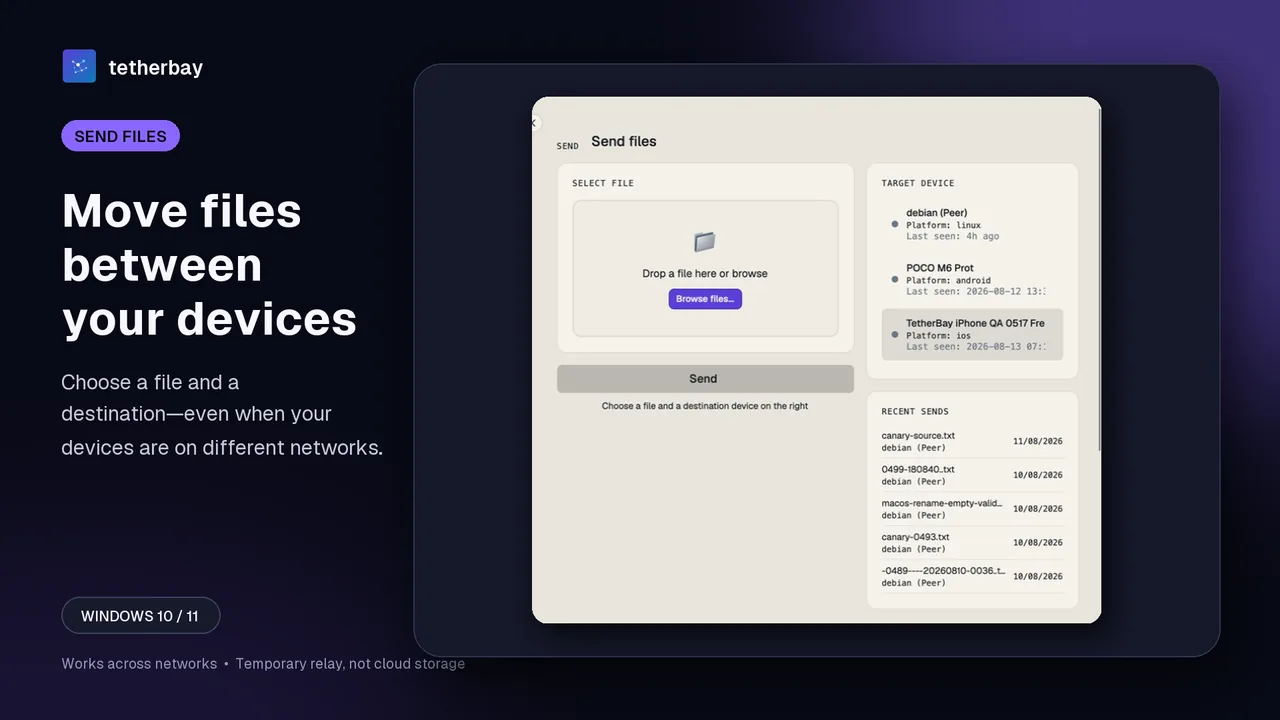
On this model the relay is a delivery point, not storage you manage. It carries encrypted sync data between participating devices and is not a cloud-storage product with its own file browser or storage plans. Changes made while another device is offline wait on the relay in encrypted form and are delivered when that device comes back online, within the relay retention period. The relay holds undelivered data up to a per-plan buffer: 1.5 GB in flight on Free and 10 GB on Pro.
On security, folder contents are encrypted on the device with AES-256-GCM before they reach the relay, the relay handles ciphertext, and keys stay on participating devices. The relay cannot open file contents, but it does see file names and sizes, so it is not a system where the middle sees nothing. Details are in the encryption page.
Send a file between two different networks in a few steps
- Download Foldpair on both devices from the download page. There are desktop clients for Windows, macOS and Linux, and an Android app for one-off file transfers.
- Sign in on both devices with the same account so they appear as your own devices.
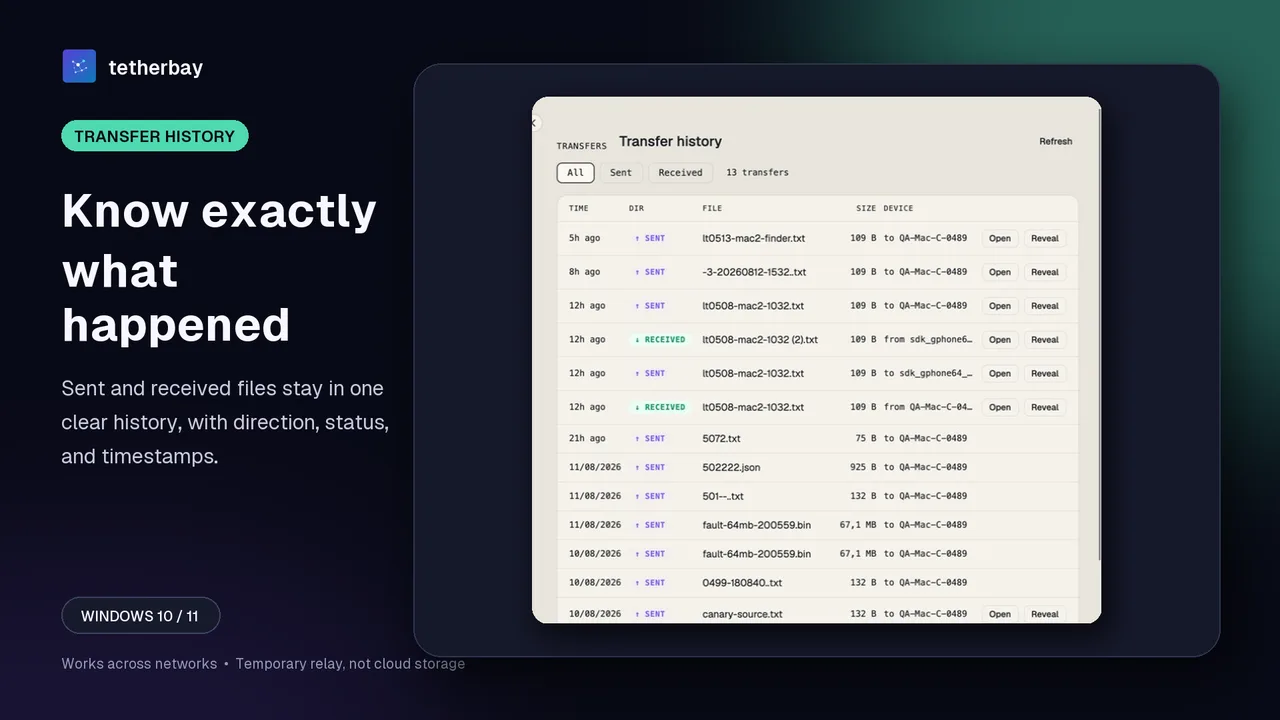
- On the sending device open Send, choose the file and pick the target device from the list.
- Press Send. The file goes through the relay, so the receiving device can be on another Wi-Fi network or on mobile data.
- Check Transfer history on either side to confirm the file arrived.
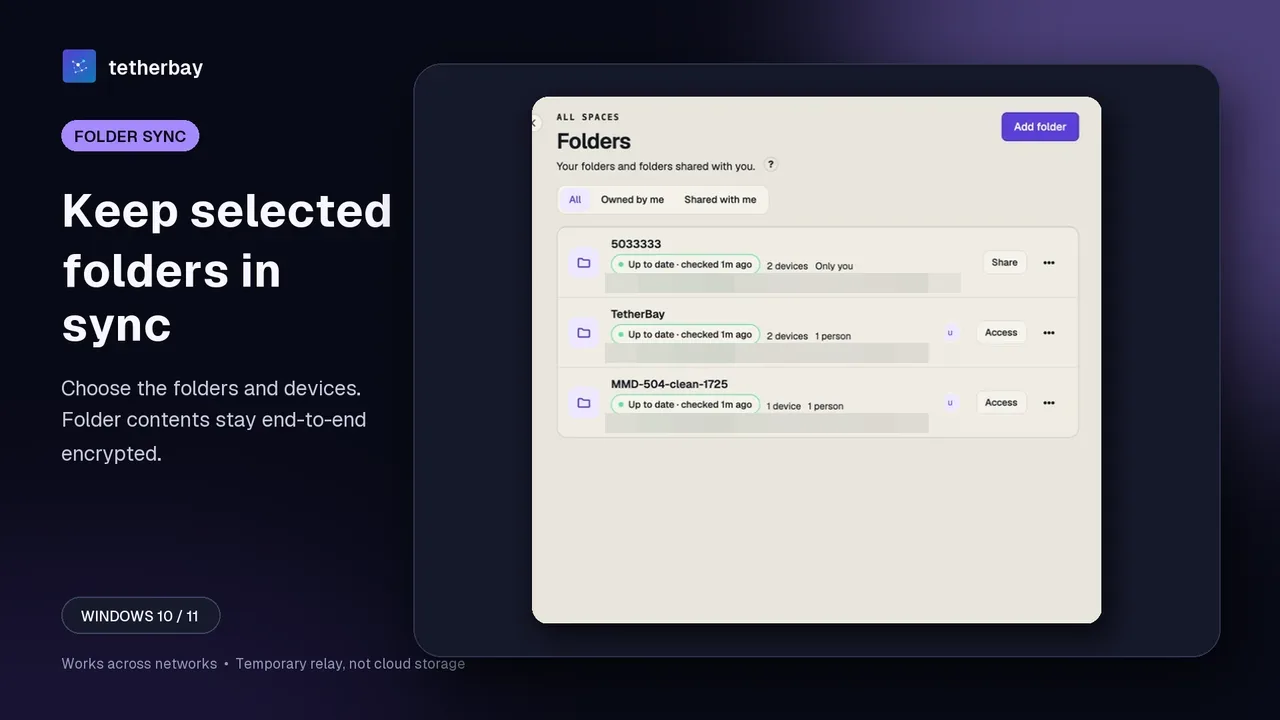
- For files that should always stay current, add the folder in Folders and choose which devices keep it in sync.
Practical tip for the first run: send a small test file first and keep a separate backup of anything irreplaceable until you have seen the result on both sides. The Android app supports one-off sends and receives only; it does not do folder sync, and there is no public iOS release yet.
When to choose LocalSend, and when Foldpair
LocalSend is a good tool and, for its job, often the better one. Pick it when both devices are in the same place on the same network, when you want no account and no relay at all, when you need a quick one-off send, or when you prefer a fully open-source local-sharing app. It also works with no internet connection at all, which a relay-based tool cannot match.
Pick Foldpair when the devices are not together: a work laptop and a home PC, a Mac and a Windows machine in different buildings, or a phone on mobile data and a computer on Wi-Fi. It is also the better fit when the receiving device is often off, since waiting changes are delivered later, and when you want selected folders kept in sync instead of sending files by hand. Clipboard sync for text and images between your own devices is included on every plan. Foldpair has a free plan and paid Pro and Team plans, and downloading needs no credit card.
Many people use both: LocalSend for the quick send across a desk, Foldpair for everything that crosses a network boundary. A side-by-side view is in Foldpair vs LocalSend, and the general problem is covered in file sync across different networks.
Frequently asked questions
Does LocalSend work on mobile data?
No. LocalSend transfers over a shared local Wi-Fi network, and its FAQ says it does not work over the internet. A phone on mobile data is not on the same local network as your computer. If the phone shares a hotspot and the computer joins it, they are on one network and LocalSend can work.
Can LocalSend work between two different Wi-Fi networks?
Not directly. Two separate Wi-Fi networks are separate local networks, so the devices cannot discover each other. Move both onto one network, for example with a hotspot, or use a tool designed to cross networks.
Can I use Tailscale or another VPN with LocalSend?
That combination is not something LocalSend documents, so check its project documentation before relying on it, since local discovery behaves differently across a VPN overlay. What Tailscale's docs do describe is connecting devices securely across different networks, which gives you a network path that a separate transfer tool could use.
Does Foldpair need both devices online at the same time?
No. Changes made while another device is offline wait on the relay in encrypted form and are delivered when that device comes back online, within the relay retention period. There is a per-plan buffer: 1.5 GB in flight on Free and 10 GB on Pro.
Is Foldpair a cloud drive?
No. The relay carries encrypted sync data between participating devices; it is not a cloud-storage product with its own file browser or storage plans. It can see file names and sizes but cannot open encrypted file contents.
Is it safe to try Foldpair with my real files?
Start with a small test file and keep a separate backup of irreplaceable data. Once the first transfer looks right on both devices, add the folders you want kept in sync.
Related guides and comparisons
Sources and related reading
- LocalSend official site — official FAQ and feature description: local Wi-Fi, offline operation, no internet transfer, HTTPS encryption, platforms; checked November 15, 2026.
- LocalSend official repository — official local-communication architecture and setup documentation; checked October 21, 2026.
- What is Tailscale? — official description of connecting devices across different networks and NAT using WireGuard; checked November 15, 2026.
- Foldpair vs LocalSend — dated first-party comparison with explicit trade-offs; checked November 15, 2026.