First decide what you want to avoid
People who want to sync files without Dropbox, OneDrive or Google Drive usually want one of three things: no monthly storage bill, no documents in a provider's data centre, or a folder on disk that is the real thing rather than a cache of a web service.
A cloud drive keeps a durable, provider-hosted copy that becomes the shared source for every device. The alternatives below move that copy onto your own devices, onto a box you run, or into short-lived staging on a relay, and each choice trades something.
So "without a cloud drive" is more precise than "without a server". Almost every approach that works across different networks involves some server for discovery, relaying or hosting. The useful questions are who operates it, what it can see, and what happens to your files when it is switched off.
This page compares six approaches on criteria you can check in each project's own documentation: Syncthing, Resilio Sync, a NAS or SMB share, rsync and scripts, a self-hosted Nextcloud, and Foldpair. Where the documentation we cite does not cover a point, the table says so rather than guessing.
Side-by-side comparison
| Question | Syncthing | Resilio Sync | NAS or SMB share | rsync and scripts | Nextcloud (self-hosted) | Foldpair |
|---|---|---|---|---|---|---|
| Best job | Continuous folder sync between your own devices | Peer-to-peer personal file sync | One shared copy on your local network | Scheduled or on-demand copy, usually one direction | Your own cloud drive, on hardware you control | Selected folders kept in step across different networks |
| Where the master copy lives | On every device; no central copy | Not covered by the docs we cite | On the NAS or file server | On the destination you choose | On the server you run | On participating devices; the relay holds only undelivered encrypted data |
| Needs a server you run | No; discovery servers and relays are run by others by default | Not covered by the docs we cite | Yes, the NAS or a PC acting as file server | Only if you pull or push to a remote machine | Yes | No |
| Continuous sync | Yes | Not covered by the docs we cite | No: files are read and written over the network | No: each run is one invocation | Yes, through its sync client | Yes, for selected folders |
| Works when devices are on different networks | Yes, directly or through a relay | Not covered by the docs we cite | Needs a route in, such as a VPN or a published endpoint | Yes, over SSH if the target is reachable | Yes, if the server is reachable | Yes; designed for different networks and compatible with an existing VPN |
| Both devices online at once | Needed to sync | Not covered by the docs we cite | The NAS must be on | Both ends must be reachable during the run | The server must be on | No: changes wait on the relay within the retention period |
| Needs an account | Devices are identified by Device IDs | Not covered by the docs we cite | Depends on the NAS or PC acting as server | Access to the remote machine, usually over ssh | Not covered by the page we cite | Yes, a Foldpair account |
Only the NAS and Nextcloud keep a durable master copy, and you run and back up the machine holding it. The peer-to-peer tools remove the master copy altogether, which means a closed laptop cannot hand over the file you saved today.
Syncthing
Syncthing's security documentation says device-to-device traffic is protected by TLS and that each device is identified by a certificate fingerprint, shown as a Device ID, which is checked against the list of devices you accepted. Uninvited devices are rejected. Global discovery servers map device IDs to addresses and are hosted by the project's maintainer by default, local discovery uses broadcast on the LAN, and when a direct connection is impossible devices can use a relay that anyone can run. The docs say data passing through a relay is encrypted and not subject to inspection by it, and that the relay learns which device IDs are involved.
Setup, per the getting-started guide, is: install Syncthing on both devices, read each device's ID, add the other device by ID on each side, choose the folder to share, and wait for the devices to connect. The connection happens only when the configuration is mutual. See also our direct Foldpair vs Syncthing comparison.
Resilio Sync
Resilio describes Sync as personal file sync and share powered by peer-to-peer technology, and says the free download now includes features that were previously limited to its paid Pro plan. The page we cite does not list supported platforms and gives no encryption or relay details, so check Resilio's own download and security pages before relying on those points. Our Foldpair vs Resilio Sync page goes deeper.
A NAS or SMB share
A network-attached storage box or a shared folder on an always-on PC is the classic answer. Microsoft's documentation describes SMB as a network file-sharing protocol that lets users and applications read and write files on a remote server over the network, and every modern Windows edition includes both the client and server parts. This is not synchronisation: you work on the files where they live. That is fine at home or in an office, and awkward on a laptop that travels, because the share is unreachable once you leave the network.
Microsoft's page notes SMB can run over QUIC for internet access without a VPN, but that is something you must set up and secure yourself. A NAS used as the central copy also needs its own backup.
rsync and scripts
The rsync manual calls it a fast, versatile file-copying tool that works locally, over a remote shell or through a daemon, and by default it uses ssh. It sends only the differences between source and destination. Each run copies in one direction, and files that exist only at the destination are left alone unless you pass an option such as --delete, which removes them.
That suits backups and one-way mirroring, and is a poor fit for two computers that both edit the same folder; scheduling it is up to you.
Nextcloud, self-hosted
Nextcloud's install page says the server is for hosting on your own server or private cloud, with Docker, VM, archive, Snap and single-board-computer installs, and notes that the server does not support Microsoft Windows directly. Its desktop client keeps selected local folders in sync with the server and is built on WebDAV, with clients for Windows 10 (1809 or later, 64-bit), macOS 13 or later and Linux. In effect you are running your own cloud drive. That gives you browser access, and it makes you the administrator: updates, backups and internet exposure are yours.
Foldpair: selected folders through a temporary relay
Foldpair keeps the working copies on your devices and syncs selected folders between participating computers. Transfers go through an authenticated temporary relay. The relay is not a cloud-storage product: it has no file browser and is not sold as storage; it only buffers data in transit. It is designed to work across different networks and alongside an existing VPN.
Folder and clipboard contents are encrypted on the device before they reach the relay, and the keys remain on your participating devices. That encryption applies to those contents only. The relay does see file names and sizes, and for clipboard items the type, source device and time. When another device is offline, changes wait on the relay in encrypted form and are delivered when it comes back, within the relay retention period. Read how Foldpair works and the encryption overview for the full boundary.
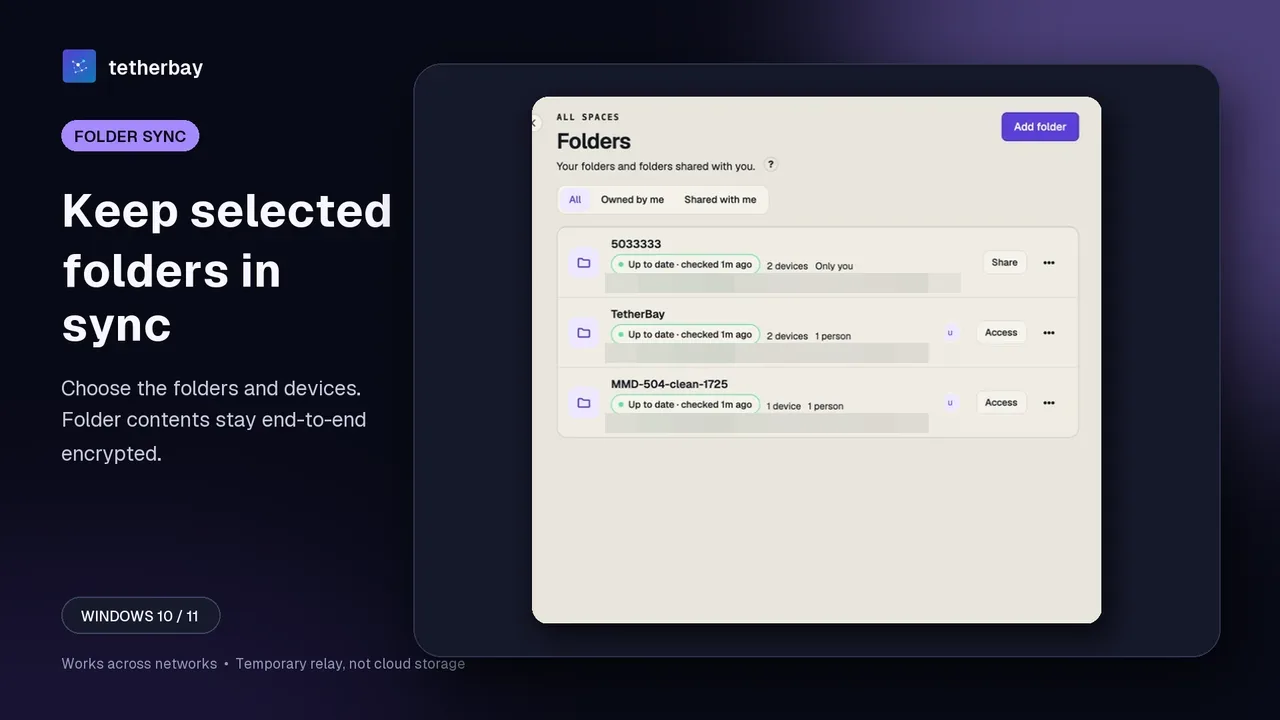
There are desktop clients for Windows, macOS and Linux. The Android app is a beta installed directly and does one-off file sends, not folder sync, and there is no publicly installable iOS release yet. Foldpair has a free plan and paid Pro and Team plans, and downloading needs no credit card. The relay holds not-yet-delivered encrypted data up to a per-plan buffer, 1.5 GB in flight on Free and 10 GB on Pro.
Set up folder sync without a cloud drive in Foldpair
- Install Foldpair on each computer that should keep a working copy from the download page.
- On the first computer, choose Add another device and use its link, QR code or 6-digit code on the second computer, so both are signed in to the same account. The device pairing help shows each option.
- Choose Add folder and select an existing folder instead of moving the project into a provider-owned drive tree.
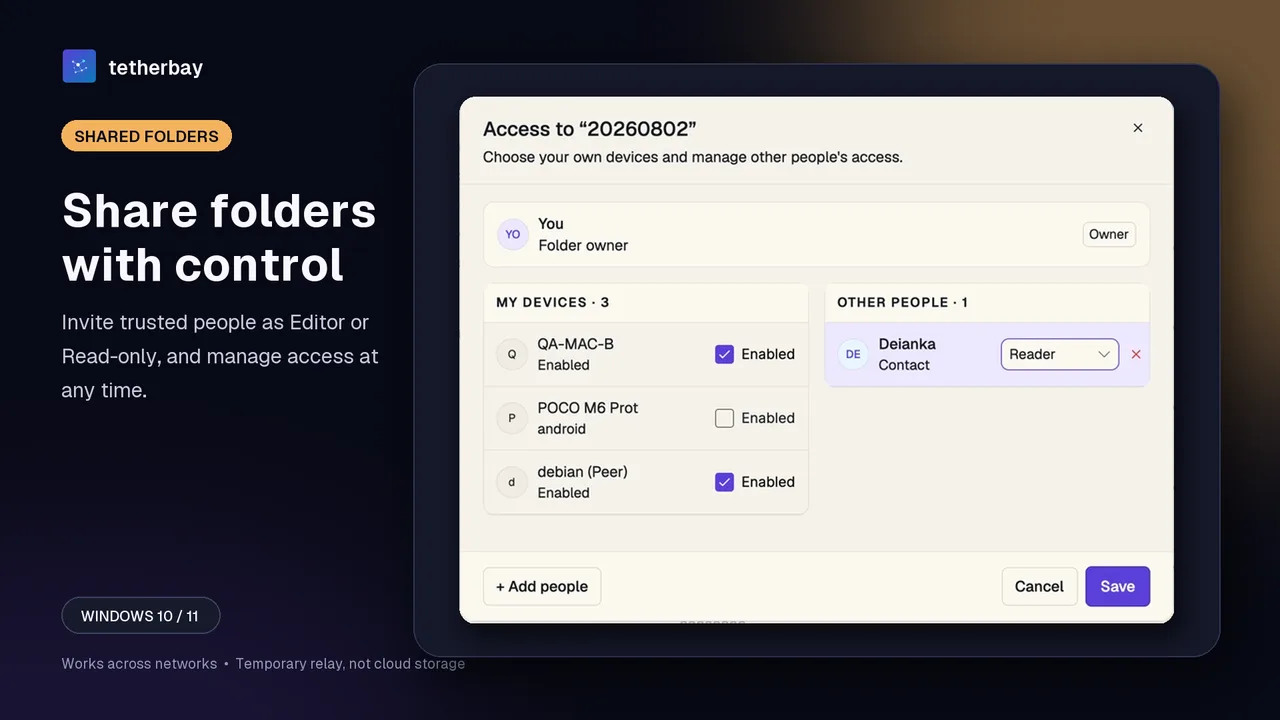
- In the folder's Devices panel, turn on the second computer so it keeps a copy (see selective sync), then make one harmless test change, for example a small text file.
- Open the file on the second device to confirm it arrived intact, rather than trusting a status label alone.
- Check that the folder shows as up to date; if something looks stuck, see Check sync status. Keep a separate backup of anything irreplaceable.
When the other tool is the better choice
- Choose Syncthing if you want a free, open peer-to-peer tool, are comfortable with device IDs and a local web interface, and your devices are usually online together.
- Choose Resilio Sync if you want a peer-to-peer tool and have checked its platform and security pages against your needs.
- Choose a NAS or SMB share if everyone works on one local network and you want a single central copy you control.
- Choose rsync or a script for backups and one-way mirrors, where you want exact control and are happy to schedule it.
- Choose self-hosted Nextcloud if you want a browser-accessible cloud drive that you operate yourself, and you will maintain the server.
- Choose Foldpair if your computers are on different networks, you do not want to run a server of your own, and you accept a relay that sees file names and sizes but not folder contents.
- Stay with a cloud drive if you need files available in a browser when every device is off; none of the options above replace that without a server you run.
Frequently asked questions
Can I sync files without Dropbox, OneDrive or Google Drive?
Yes. Syncthing, Resilio Sync, a NAS or SMB share, rsync, a self-hosted Nextcloud and Foldpair all keep files off a third-party cloud drive. They differ in who keeps the master copy and whether devices must be online together.
Does syncing without a cloud drive mean that nothing runs on a server?
No. Syncthing uses discovery servers and optional relays, a NAS or Nextcloud is a server you run, and Foldpair uses an authenticated temporary relay. The difference is that none of them is a provider-hosted drive holding your files long term.
Does the Foldpair relay store my files permanently?
No. The relay is not a cloud-storage product. When another device is offline, encrypted changes wait on the relay and are delivered when it returns, within the relay retention period.
What can the Foldpair relay see?
Folder and clipboard contents are encrypted on the device and the keys remain on your participating devices. The relay does see file names and sizes, and for clipboard items the type, source device and time.
Is rsync enough to keep two computers in sync?
Only for one-way copies. Each rsync run goes in one direction and does not resolve edits made on both sides, so it suits backups better than two-way sync.
Is it safe to try Foldpair on real files?
Start with a small test file, confirm it arrives intact on the other device, and keep a separate backup of irreplaceable data.
Related guides and comparisons
Sources and related reading
- Syncthing Security Principles — TLS between devices, device ID certificate fingerprints, discovery servers, relays; checked November 16, 2026.
- Syncthing Getting Started — steps to share a folder between two devices; checked November 16, 2026.
- Resilio Sync — described as peer-to-peer file sync; free download includes former Pro features; platforms and encryption not stated on the page; checked November 16, 2026.
- Microsoft Learn: SMB File Sharing overview — SMB definition, client and server roles, QUIC option; checked November 16, 2026.
- rsync manual page — delta transfer, ssh by default, one-direction runs, --delete; checked November 16, 2026.
- Nextcloud install — self-hosted server options, no direct Windows server support, desktop client platforms, WebDAV; checked November 16, 2026.
- How Foldpair works — first-party relay and different-network explanation; checked November 16, 2026.
- Foldpair security — first-party content-encryption scope and metadata boundaries; checked November 16, 2026.
- Foldpair relay help — first-party description of relay buffering, offline delivery and visible metadata; checked November 16, 2026.