Start from your situation, not the tool
People usually run into friction moving data between Windows and macOS when they grab an app before defining the task. Almost every real workflow falls into one of three buckets.
- One file, right now. A tax PDF, a video export, an installer. You want it over there in a minute and you do not want to create an account.
- A big batch, once. A photo library, a project archive, an old Documents folder you are moving to a new Mac. Speed and reliability matter more than convenience.
- A folder that stays current. A notes vault, a design handoff directory, a code workspace you open on both machines. Edits on either side must appear on the other without anyone pressing send.
Buckets one and two are point-in-time copies, whereas bucket three requires ongoing sync. Below, six methods progress from manual hardware handoffs to hands-off automation, noting where each fits best. Readers focused strictly on continuous sync can skip straight to our step-by-step folder pairing guide.
Way 1: USB drive formatted exFAT
External flash or SSD storage remains the classic method and still wins for massive one-time migrations. Choose exFAT when formatting: macOS and Windows both support full read-write access on exFAT without hitting FAT32's 4 GB per-file ceiling. Standard FAT32 rejects big video exports, while macOS mounts Windows NTFS volumes as read-only unless you add third-party drivers.
Best for: moving a heavy archive once when both computers sit nearby or you can mail physical media. Watch out: you create a static snapshot rather than a live folder. Any later edit on one computer leaves the other side outdated, and yanking the cable without ejecting cleanly risks corrupting the volume metadata.
Way 2: An SMB share on your own network
Built-in SMB sharing lets Windows expose a directory over the LAN so Finder on macOS can mount it via Go > Connect to Server, or vice versa after enabling File Sharing inside macOS System Settings. You install nothing extra, register no account, and push large assets at full local Ethernet or Wi-Fi throughput.
Best for: desks where PC and Mac stay on the same local LAN and you simply open remote files in place. Watch out: SMB mounts a remote drive rather than maintaining mirrored local folders. Nothing replicates automatically, and access disappears whenever the host machine sleeps or your laptop leaves the premises without a VPN tunnel back.
Way 3: LocalSend
LocalSend is an open-source, cost-free utility for beaming files across your local Wi-Fi or Ethernet with zero account registration. According to its project site, no internet connectivity is needed. Install the client on each computer, pick the target peer, and hit send.
Best for: tossing a single document or small group of files across shared Wi-Fi. Watch out: both endpoints must be powered on and connected to the same subnet simultaneously, and LocalSend performs one-time drops instead of ongoing folder sync. When your computers sit on different routers, see does LocalSend work over the internet.
Way 4: A cloud drive (iCloud Drive or OneDrive)
Hosted cloud drives upload your directory tree to vendor storage and sync copies down to every logged-in computer. Apple bundles iCloud Drive into macOS with a companion Windows client, while Microsoft builds OneDrive into Windows alongside a macOS client. Because files reside on remote servers, they stay accessible even if both desktops are shut down.
Best for: users who already subscribe to cloud storage and work primarily on one OS vendor's stack. Watch out: every synced gigabyte eats into your paid storage cap, and the non-native desktop client rarely feels as polished. If storage quotas or server-hosted copies put you off, check how to sync folders without a cloud drive.
Way 5: Peer-to-peer sync apps (Syncthing, Resilio Sync)
Open-source and free to use, Syncthing links machines through cryptographic Device IDs. Official Syncthing docs note that traffic falls back to community relays whenever direct connectivity fails, recommending port forwarding for full throughput. Resilio Sync similarly prefers direct peer-to-peer sockets with relay fallback and publishes desktop builds for Windows, macOS, and Linux.
Best for: keeping a directory continuously aligned when you enjoy hands-on configuration and both machines run concurrently most days. Watch out: updates generally transfer only when at least two peers are awake at once. Deeper breakdowns: Foldpair vs Syncthing and Foldpair vs Resilio Sync.
Way 6: A paired folder with Foldpair
Foldpair mirrors chosen directories across your linked computers by passing updates through a temporary authenticated relay. Your Windows PC and Mac can operate on separate Wi-Fi networks while an existing VPN stays connected. When end-to-end encryption is active on a folder, payloads are encrypted locally via AES-256-GCM prior to upload. That relay acts strictly as a transit queue rather than cloud storage, forwarding ciphertext and holding pending updates only within a bounded window.
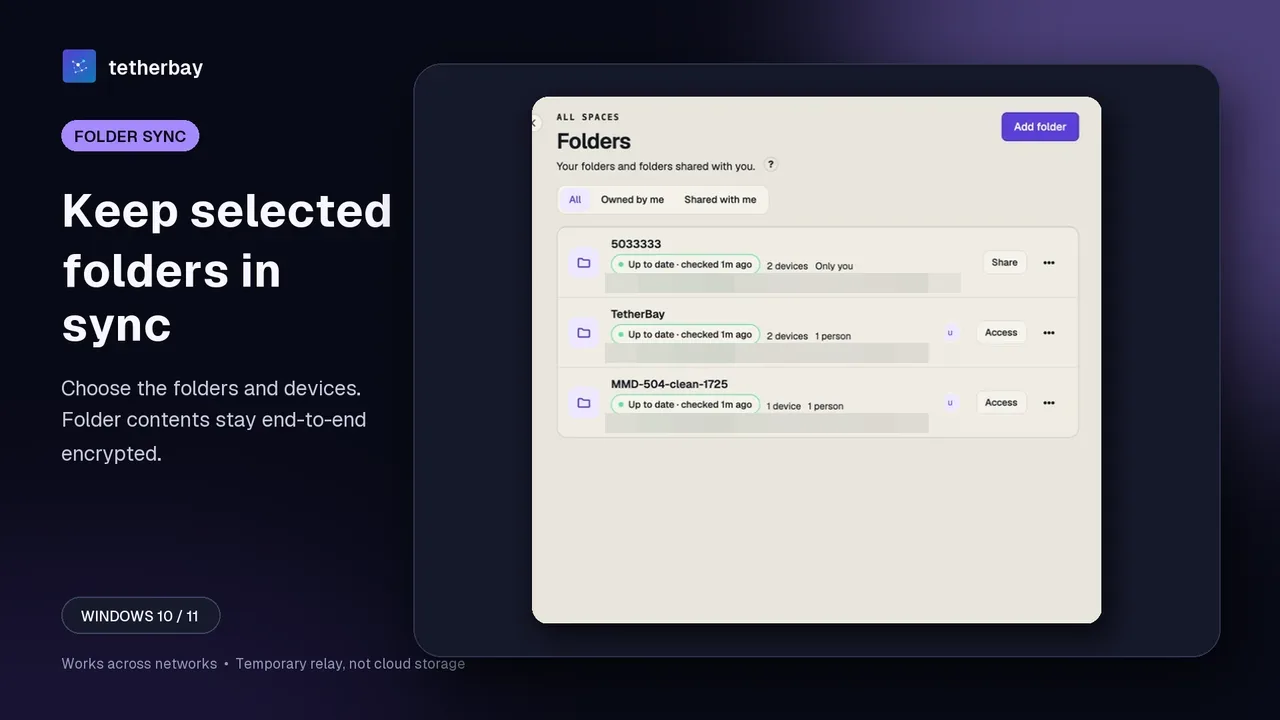
Best for: active project directories spanning personal machines that rarely join the same LAN. Watch out: synchronization replicates accidental edits and deletions right alongside intended saves, so maintain separate backups. You can start on the free tier with no credit card required.
The six ways at a glance
Each line below reflects concrete, checkable behavior. Confirm current vendor details in each project's documentation before settling on a workflow.
| Question | USB (exFAT) | SMB share | LocalSend | Cloud drive | Syncthing / Resilio | Foldpair |
|---|---|---|---|---|---|---|
| Job it does best | Large single batch | Reading files in place on one network | Fast hand-off to a device nearby | Files mirrored via an account | Continuous folder sync | Continuous folder sync |
| Needs both computers on one network | No, but needs physical hand-over | Yes, or a VPN | Yes | No | No; direct when reachable, relay otherwise | No; built for separate networks, VPN-friendly |
| Keeps a folder current by itself | No | No | No | Yes | Yes | Yes |
| Other computer asleep | Not applicable | No access | Both must be present | Files already in the cloud | Both usually need to be online | Encrypted changes queue on the relay until it returns, within the retention period |
| Where the files live | On the drive | On the sharing computer | Only on the two devices | Provider's storage | Only on your devices | Only on your devices; the relay is temporary |
| Cost | Price of a drive | Free | Free | Free tier, then paid plans | Free / see vendor | Free plan; Pro and Team cost extra |
None of these six approaches dominates every scenario. Match your actual job from the opening section, then scan down the corresponding column.
Do not forget the small stuff
Much of what moves between a PC and a Mac is never saved as a document: links, terminal snippets, or quick screen captures. Writing those out to temporary files just to send them wastes time. Foldpair includes per-device clipboard synchronization for text and images across all plans. Every clipboard payload is sealed locally using AES-256-GCM prior to transit, and external folder collaborators never receive clipboard items.
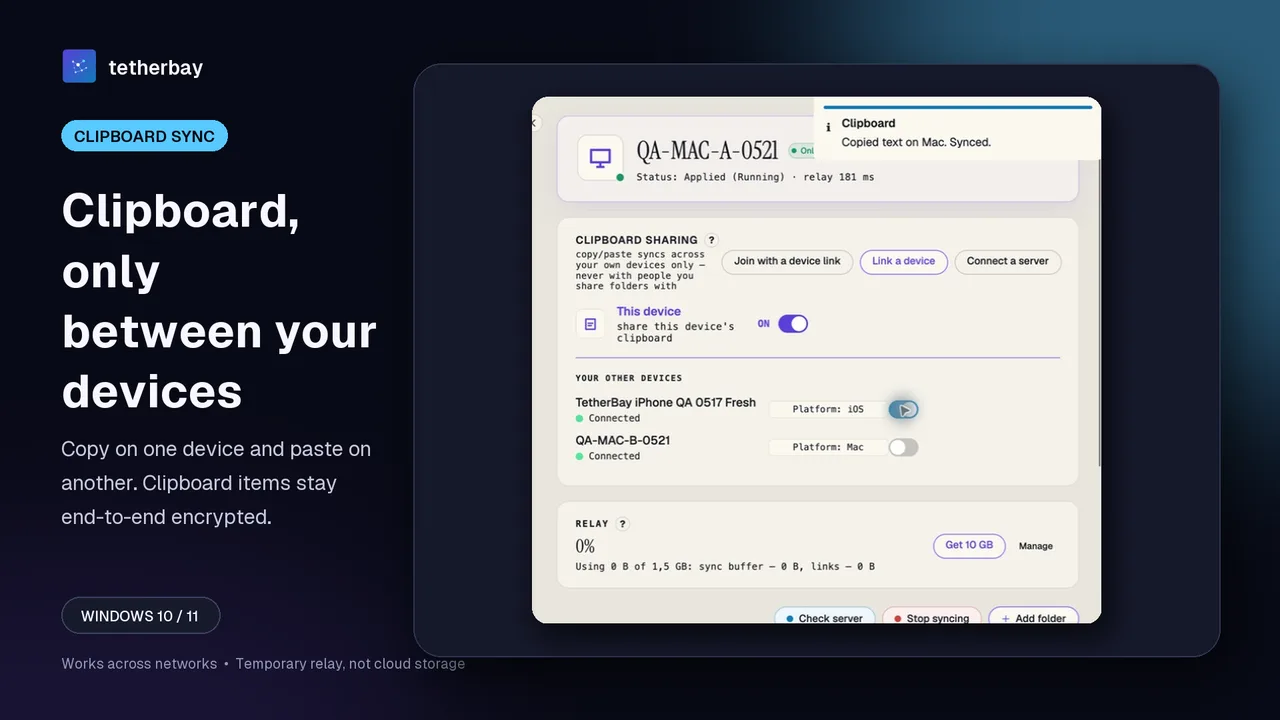
Clipboard mirroring runs on desktop clients (Windows, macOS, and Linux). On Android, the app handles one-off file transfers without clipboard sync, while iOS has no public build yet.
If the computers are far apart and you only need one file
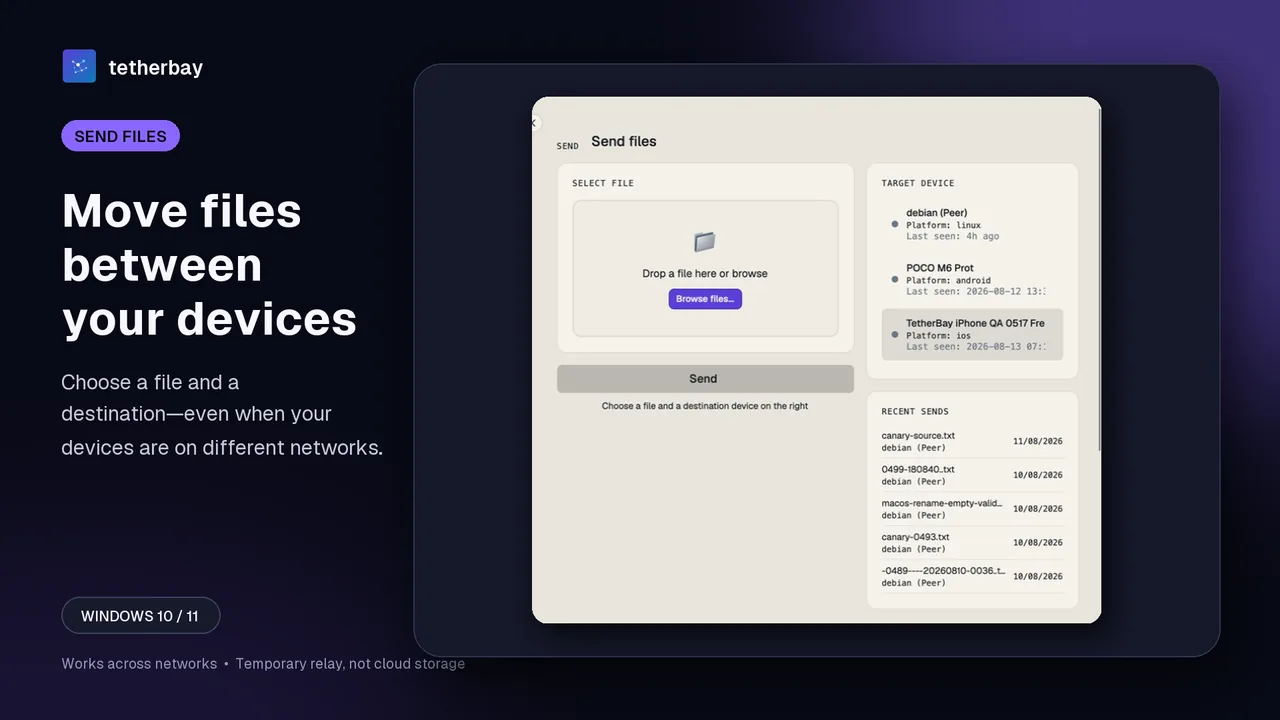
LAN-only utilities stop working once your Mac stays home and your Windows box sits at work. Foldpair's Send view covers that gap: drag an item in, pick another linked device, and let the relay deliver it. Reach for Send on occasional individual files, and rely on a paired folder for ongoing projects.
What the relay can and cannot see
While encrypted payloads remain opaque to the relay, metadata stays visible: file names and byte sizes for folders, alongside item type, origin device, and timestamp on clipboard transfers. Collaborators on shared directories receive explicit roles (Owner, Editor, or Reader), where Readers can fetch and view files while uploads or modifications are blocked. Check the encryption overview alongside the member roles page for full specifications.
A safe first run with Foldpair
- Get Foldpair for both systems from the download page.
- Sign in on each and pair them using the device pairing help.
- Choose one folder on either computer.
- Drop a tiny test file in, then open it on the far side to prove it truly arrived; a green status alone proves little. Back up irreplaceable things elsewhere.
- Once that works, bring real files in, and consult Check sync status if a folder stalls.
Frequently asked questions
What is the fastest way to move a large folder from Windows to a Mac once?
An exFAT USB drive, or an SMB share if both are on one network. Both run at local speed with no account. Reach for a sync tool only if the folder must keep updating afterwards.
Can Windows and Mac sync folders without being on the same Wi-Fi?
Yes, using a tool meant for it. Foldpair is designed for different networks and is compatible with an existing VPN; Syncthing and Resilio Sync also span networks, directly when they can and via relays when they cannot. SMB and LocalSend belong to one local network.
Do I need Dropbox, iCloud or OneDrive to sync between Windows and Mac?
No. A cloud drive is only one route. Foldpair's relay is not cloud storage: it forwards encrypted sync data and parks undelivered changes briefly, while the working copies stay on your own machines.
Why will my Mac not write to my Windows USB drive?
It is probably NTFS, which macOS reads but cannot write on its own. Copy your data off, reformat as exFAT, and both systems read and write.
What if one computer is switched off?
With Foldpair, edits made while a device is offline queue on the relay in encrypted form and arrive when it reconnects, within the relay retention period.
Is sync the same as backup?
No. A deletion or a damaging edit syncs across as well. Test with a small file first and keep another backup of data you cannot replace.
Related guides and comparisons
Sources and related reading
- LocalSend project site — what it is for, which platforms it covers, and whether it needs an account or internet; checked October 21, 2026.
- Syncthing docs: relaying — what a Syncthing relay does and when it is used; checked October 5, 2026.
- Syncthing docs: firewall setup — which ports Syncthing wants forwarded; checked October 5, 2026.
- Resilio Sync downloads — list of supported desktop clients; checked October 5, 2026.
- Resilio Sync product page — how the vendor describes the product and its free tier; checked October 5, 2026.
- How Foldpair works — our own walk-through of folder sync, encryption and the relay; checked October 21, 2026.
- Relay help page — our own notes on buffers, retention, offline delivery and what the relay can see; checked October 21, 2026.