What you need first
Start with your Windows machine, your Mac, and a temporary directory containing several disposable test files. Keep production folders out of scope until you finish the verification steps below.
- Desktop builds for Windows and for macOS (Apple Silicon or Intel) are on the download page.
- The Free plan allows 2 linked devices, enough for one PC plus one Mac.
- Both machines must reach the Foldpair service online; they never need to see each other directly.
- Only need to hand over a single file or a one-time batch? The six-way overview is a better start.
Step 1: Install on both and link them
- Install the app on the PC and sign in, or create your account there.
- Choose Add another device. A QR code, a link and a six-digit code appear.
- Install the app on the Mac, then paste the link or code into its welcome screen. It joins the same account.
- Confirm that the device list now shows both computers.
Step 2: Choose the folder
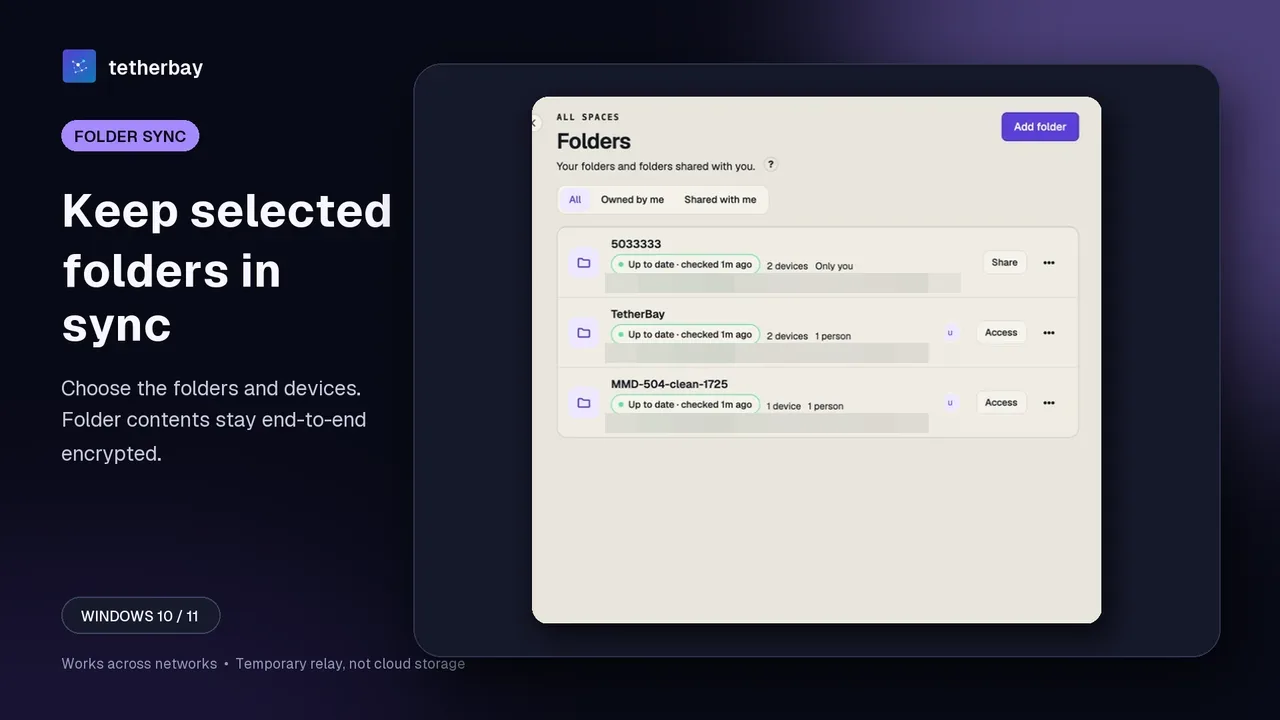
From the machine where your test directory currently sits, press Add folder and select that path. Begin with your disposable sample folder. No bytes upload yet, because synchronization starts only after you enable at least one additional computer on that folder.
Foldpair pairs individual directories rather than entire drives. Giving each active project or note vault its own dedicated folder pair makes sync health far simpler to monitor.
Step 3: Tick the second computer
Inside that folder's Devices view, switch on your second machine. Because selective sync operates per directory and per endpoint, other folders can stay local to the PC while this pair mirrors across both.
During the initial sync run, the Mac populates its local directory. When end-to-end encryption is enabled on that folder (which desktop clients turn on automatically for owned folders once every participating endpoint supports it), file payloads are sealed locally using AES-256-GCM prior to hitting the relay. Let both machines settle on an up-to-date state before proceeding.
Step 4: What each action does on the far side
After initial replication completes, both endpoints act as equal peers. Review the table below for how everyday filesystem operations behave across the link, then run the hands-on checks in the next step.
| You do this | The other computer does this |
|---|---|
| Save a new file | Places it at the same path after it downloads. |
| Change a file | Swaps in the newer version. Folders without end-to-end encryption may receive just a binary delta when an earlier version is known; encrypted folders upload the changed file whole. |
| Rename or move | Usually performed as a rename rather than a duplicate. When the receiver cannot be sure, say because it holds unsaved edits under the old name, it keeps both files instead of discarding either. |
| Remove a file | Removes it too; the copy sync takes away may be kept in that folder's local recovery bin. |
| Both sides change one file before syncing | A conflict copy appears (step 6). |
| Power the far machine down | Your changes queue on the relay and reach it after it returns, as long as your plan's retention period has not run out. |
Step 5: Prove both directions work
- Write
hello-from-pc.txton the PC and look for it, intact, on the Mac. - Write
hello-from-mac.txton the Mac and look for it on the PC. - Next edit one file, rename another and delete a third, each on a different machine, and check the result on the opposite one.
- Go to Settings and press Check now. It lines up the recorded paths, sizes and hashes of every device and tells you who agrees, who was offline and who could not be checked.
- Only after that, move real files in.
Step 6: Plan for conflicts
Conflicts happen whenever two machines modify the exact same file prior to exchanging updates. Rather than silently discarding work, Foldpair lets the first upload arriving at the relay keep the original filename. Whichever endpoint modified the file second writes its own local draft alongside as <name>.conflict-<stamp><ext> before applying the relay's version. Those conflict files stay strictly local on the machine that generated them and never upload.
Launch Review sync conflicts to inspect both drafts side by side and retain whichever content you need under clean filenames. Avoid treating the filename timestamp as definitive evidence of which endpoint authored the edit. Good habits prevent most collisions: save and close a file on one computer before opening it elsewhere.
Step 7: Learn where deleted files end up
Because file removals propagate across paired folders, an accidental delete on Windows also removes the Mac copy. Files deleted or replaced by incoming sync events can be tucked into the receiving machine's local recovery bin, where a restore dialog puts them back at their original path if no newer file occupies it. Items you delete directly on that same computer may bypass this bin. Archived bin items remain strictly on disk without uploading anywhere. View it as an emergency catch rather than true backup storage; see Recover a deleted file for full behavior.
Name rules that can stall a pair
macOS permits several filename patterns that Windows filesystems flatly forbid. On receipt, the sync agent validates every path and blocks entries containing < > : " | ? or *, trailing spaces or periods, or reserved DOS identifiers like CON, PRN, AUX, NUL, COM1, and LPT1. Avoid creating those names on your Mac so updates flow cleanly onto the PC.
Certain clutter and build artifacts are ignored intentionally: default exclusion patterns filter out .DS_Store, Thumbs.db, Desktop.ini, *.tmp, *.log, .git, node_modules, plus package or application bundles such as *.dmg, *.pkg, *.msi, and *.app. Whenever an expected item fails to appear on the second machine, check your ignore list before troubleshooting connectivity.
Synchronizing an active working tree requires special handling; read syncing Git commits between computers first.
Plan limits worth knowing
Plan tiers govern three quotas: total linked endpoints, maximum pending bytes buffered at the relay simultaneously, and how long undelivered updates wait for a powered-off machine. That relay cap applies only to in-flight backlog rather than total folder size on disk, while any single file exceeding currently available buffer headroom stays queued.
- Free: 2 devices, 1.5 GB buffer, changes wait 24 hours.
- Pro: 5 devices, 10 GB buffer, 7 days.
- Team: 10 devices, 30 GB buffer, 30 days.
Keep the relay's boundaries clear: it provides neither a web file manager nor permanent cloud storage tiers. While file names and sizes remain visible to the relay, encrypted file payloads stay unreadable. On Android, the client supports one-off file transfers rather than folder sync.
Frequently asked questions
Do the two computers need to share a network?
No. Foldpair is built to work across different networks through an authenticated temporary relay and is compatible with an existing VPN. Each machine just needs to reach the Foldpair service.
Does the pair really run both ways?
Yes. Every device with the folder enabled uploads and downloads. The place it started is just history.
What if I edit one file on both computers?
Whichever version reached the relay first keeps its name; the later local edit is kept next to it as a conflict copy, and you pick.
Is a permanent copy kept on the relay?
No. The relay holds undelivered encrypted data until every device confirms delivery, and never past your plan's retention: 24 hours on Free, 7 days on Pro, 30 days on Team. Working copies live on your own devices.
Can the relay read my files?
Contents of folders with end-to-end encryption are encrypted on the device with AES-256-GCM before reaching the relay, and the keys stay on your devices. The relay does see file names and sizes.
Can I trust it with irreplaceable work?
Rehearse on harmless files and back up separately. Sync reproduces mistakes as faithfully as good work.
Related guides and comparisons
Sources and related reading
- How Foldpair works — our own walk-through of folder sync, encryption and the relay; checked November 17, 2026.
- Conflict help page — how conflict copies are created and reviewed; checked November 17, 2026.
- Recovery bin help page — how removed or replaced files can be restored locally; checked November 17, 2026.
- Relay help page — our own notes on buffers, retention, offline delivery and what the relay can see; checked November 17, 2026.
- Selective sync help page — switching a folder on or off per device; checked November 17, 2026.
- Check sync status help page — what the Check now comparison reports; checked November 17, 2026.
- LocalSend project site — what it is for, which platforms it covers, and whether it needs an account or internet; checked October 21, 2026.