What you can and cannot share
People who search for a shared clipboard usually want one thing: copy a link, a snippet or a screenshot on one machine and paste it on another without emailing it to themselves. That is a different job from syncing files, and the right tool depends on which devices you own.
Scope, stated plainly. Foldpair's clipboard sync works between the desktop apps on Windows, macOS and Linux. Android is file transfer only, and there is no installable iOS release. The page address mentions Android because many people search for "Windows, Mac, Linux and Android" together, and we would rather tell you where the line is than imply a phone feature that does not exist.
The rest of this page compares five ways to share a clipboard, walks through the Foldpair setup, and covers the phone question separately in the "What about Android?" section. Every statement about another tool comes from that tool's own documentation, checked on 2026-11-16, and where a page does not cover something the table says so.
Side-by-side comparison
| Question | Foldpair | Windows clipboard history | Apple Universal Clipboard | KDE Connect | ClipCascade |
|---|---|---|---|---|---|
| Best job | Copy on one of your own desktops, paste on another, on any network | Paste history and syncing between Windows devices | Copy on one Apple device, paste on a nearby one | Share clipboard text between a phone and a computer | Self-hosted clipboard sync server |
| Platforms the cited page describes | Windows, macOS and Linux desktop apps; not Android, not iOS | Windows (Windows 10 and Windows 11 steps) | Mac, iPhone, iPad and Apple Vision Pro | Linux desktop, Android; iOS limited and one-way | Windows, macOS, Linux and Android |
| Content types | Text and images | Text, HTML and bitmap, 4 MB per item | Text, images, photos and videos, per the page | Text; the page says it does not work with images | Text, images and files, per the README |
| Account | A Foldpair account, same on every device | Microsoft account or work account | Same Apple Account on each device | Pairing between devices; no account mentioned on the page | Your own server, or the project's free community server |
| Devices must be near each other or on one network | No: designed for different networks | Not covered by the page we cite | Yes: devices must be near each other, with Bluetooth and Wi-Fi on | The page says the two devices must be on the same network | Depends on where you host the server |
| Encryption in transit, per the cited page | Encrypted on the device with AES-256-GCM before the relay; the relay sees item type, source device and time | Not covered by the page we cite | Not covered by the page we cite | Not covered by the page we cite | README describes end-to-end encryption as a core feature |
| Android clipboard | No | Not covered by the page we cite | Not supported (Apple devices only) | Yes, with Android 10+ workarounds | Yes |
The table is not a ranking. Windows clipboard history and Universal Clipboard are built into their operating systems and are the simplest choice when you stay inside one ecosystem. The others matter when your devices are mixed.
How Foldpair shares the clipboard
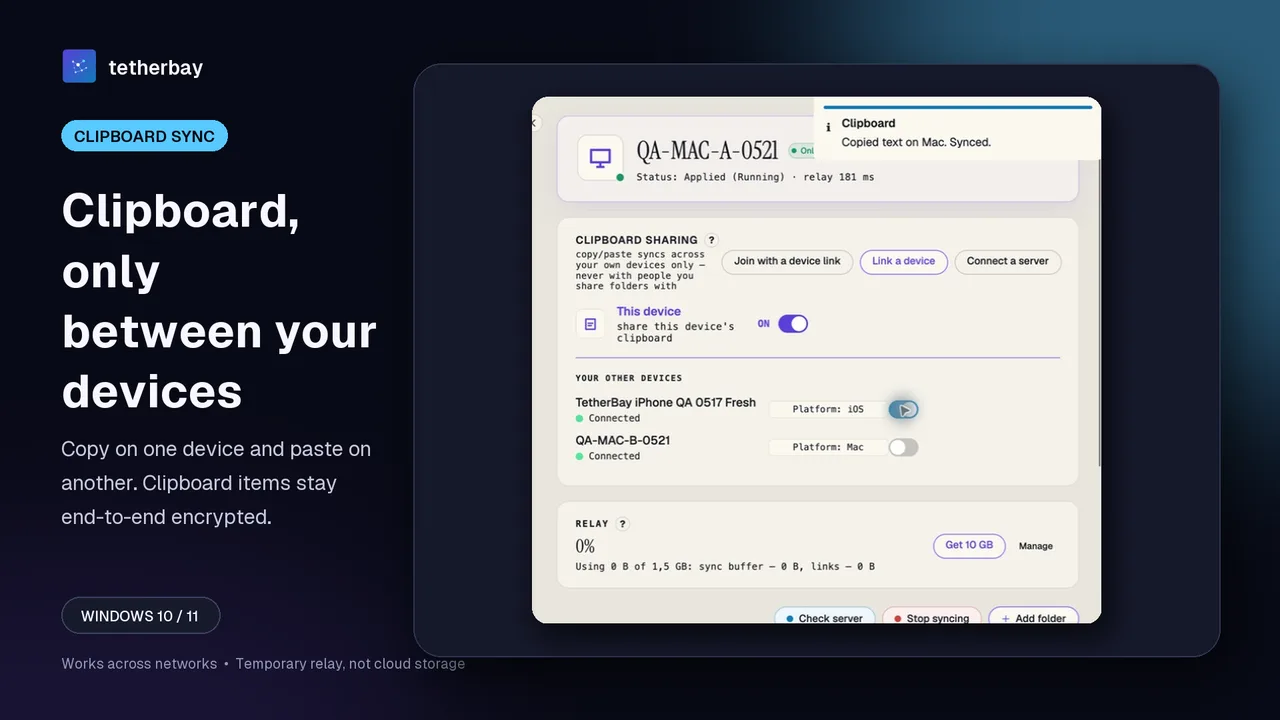
Foldpair syncs clipboard text and images between a person's own devices, on every plan, through an authenticated temporary relay. Each device has its own "share this device's clipboard" switch. A device with the switch on both sends what you copy there and receives what you copy elsewhere. A device with the switch off does neither: it does not publish your copies, and it does not deliver anything to its own clipboard.
This is deliberately a per-device choice. Leave the switch off on a shared computer or a work machine you would rather keep out of the loop. Sharing a folder with another person does not give them your clipboard: automatic clipboard sync stays inside your own account.
Foldpair is designed to work across different networks and is compatible with an existing VPN, so the two computers do not need to be on the same Wi-Fi. That is the main difference from the proximity-based tools above. The desktop clients exist for Windows, macOS (Apple Silicon and Intel) and Linux (x64 and arm64).
What the relay can and cannot see
Clipboard sync payloads are encrypted on the device with AES-256-GCM before they travel to the relay. The relay handles ciphertext for protected folder and clipboard payloads, and the keys remain on your participating devices, so the relay cannot open a clipboard item.
It is not blind to everything. For clipboard items the relay does see the item type, the source device and the time. Those are the metadata the product help documents; the relay help page lists what else it sees for files, such as names and sizes. Anything you copy, including a password, is encrypted in transit but still lands in the clipboard of every device that has the switch on.
For the longer technical picture, read how Foldpair encryption works and how the relay works.
Set it up
- Install Foldpair on each Windows, macOS or Linux computer from the download page and sign in with the same account.
- On a device already signed in, select Add another device. Foldpair generates a QR code, a link and a 6-digit code. On the other device, scan the QR code, open the link, or paste the link or code on its Welcome screen under "Have a link or code from another device?". The device pairing help has the details.
- Treat the device link and code like a password: anyone who has one can add themselves to your account. Share it only with a device you own, and revoke any device you do not recognise on the Devices tab.
- On every device that should take part, turn on that device's clipboard switch. It is off until you turn it on, and the clipboard sharing help describes the switch.
- Copy some text on one device and paste it on another. Then copy a screenshot or image and check that it arrives too.
Start with a harmless test item before you rely on it, and keep a separate backup of anything irreplaceable.
What about Android?
The Foldpair Android app supports one-off file inbox and outbox transfers. It does not sync the clipboard. Full mobile folder sync is also not part of the current Android scope. If you want to move a file from a phone to a computer, that works; if you want to copy text on a phone and paste it on a laptop, Foldpair is not the tool today.
Android also makes this harder for every app. KDE's documentation says Android 10 prevents apps from accessing the clipboard to stop malicious apps reading your data, and describes a "Send Clipboard" button in its notification and, on Android 14 and later, a tile in the pull-down menu. If phone clipboard matters to you, KDE Connect or ClipCascade are the tools in this comparison whose own pages describe Android support.
For files, see transfer files between Windows and Android. iOS is the same story in a different form: no publicly installable iOS release is available yet, so there is no iPhone clipboard sync to promise.
The alternatives in detail
Windows clipboard history. Microsoft's support page says to press Windows logo key + V and select Turn on, and to switch on "Clipboard history across your devices" in Settings under System and Clipboard. It states that the sync feature is tied to your Microsoft account or your work account, supports text, HTML and bitmap formats, limits items to 4 MB, and keeps 25 copied entries. History is cleared on restart except for pinned items. It is a good fit if every computer you use runs Windows.
Apple Universal Clipboard. Apple's support page says to use it with any Mac, iPhone, iPad or Apple Vision Pro, with each device signed in to the same Apple Account, near each other, with Bluetooth and Wi-Fi on and Handoff turned on. If your devices are all Apple, it needs no extra app.
KDE Connect. The KDE Userbase page describes a Clipboard plugin that shares the clipboard between paired devices, and says it does not work with images. It says to make sure the two devices are connected to the same network, and lists ports 1714-1764 that firewalls must not block. On iOS the page describes sharing as limited and one-way. The page does not describe clipboard behaviour on Windows and macOS, so check KDE's documentation for those builds.
ClipCascade. The project README describes an open-source tool that syncs text, images and files across Windows, macOS, Linux and Android, using a self-hosted server you deploy with Docker or a standalone JAR. It describes end-to-end encryption as a core feature. We have not tested it, and a self-hosted server is something you must run and maintain.
Limits worth knowing
- Desktop only. Clipboard sync covers Windows, macOS and Linux. Android is file transfer only and iOS is not released.
- Your own devices only. Folder members never receive your clipboard.
- Opt in per device. A device with its clipboard switch off sends and receives nothing.
- Text and images. The clipboard help lists text and images only. Use a synced folder for files.
- Metadata is visible. The relay sees the item type, source device and time of each clipboard item.
- The last copy wins. The clipboard holds one current item at a time on each device, so a second copy replaces the first.
The free plan covers clipboard sync: text and images are included on every plan, and downloading Foldpair needs no credit card.
When another tool is the better choice
- All Windows: use Windows clipboard history. It is built in, though it depends on a Microsoft account.
- All Apple devices: use Universal Clipboard, as long as the devices are close together.
- You need your phone's clipboard: use KDE Connect for text, or ClipCascade if you are willing to host a server.
- Mixed Windows, Mac and Linux desktops, possibly on different networks: Foldpair's clipboard fits that job.
FAQ
Does Foldpair sync the clipboard on Android?
No. Foldpair's clipboard sync works between the desktop apps on Windows, macOS and Linux. The Android app supports one-off file inbox and outbox transfers only, so a phone's clipboard is not shared.
Can I share a clipboard between Windows, Mac and Linux?
Yes, with Foldpair. Sign in to the same account on each computer and turn on each device's clipboard switch. Text and images are included on every plan.
Is the clipboard end-to-end encrypted?
Clipboard payloads are encrypted on the device with AES-256-GCM before they reach the relay, and the keys remain on your devices. The relay does see the item type, source device and time.
Do the computers need to be on the same network?
No. Foldpair is designed to work across different networks and is compatible with an existing VPN. Apple Universal Clipboard, by contrast, needs the devices near each other.
Does it work with iPhone or iPad?
No. There is no publicly installable iOS release yet, and the download page presents iOS as coming soon. Apple's own Universal Clipboard covers iPhone and iPad between Apple devices.
Does the clipboard sync with other people?
No. Clipboard sync stays inside your own account. Sharing a folder with someone does not give them your clipboard.
Related guides and comparisons
Sources and related reading
- Microsoft Support: Clipboard in Windows — turning on history and sync, Microsoft or work account requirement, text/HTML/bitmap, 4 MB per item, 25 entries; checked November 16, 2026.
- Apple Support: Use Universal Clipboard — device list, same Apple Account, proximity, Bluetooth, Wi-Fi and Handoff requirements; checked November 16, 2026.
- KDE UserBase: KDE Connect — Clipboard plugin, no images, Android 10 restriction and workarounds, iOS one-way, same network and ports 1714-1764; checked November 16, 2026.
- ClipCascade README — open-source clipboard sync, platforms, self-hosted server, content types, encryption claim (not tested by us); checked November 16, 2026.
- Foldpair help: clipboard sharing — per-device switch, text and images on every plan, own devices only, item type, source device and time visible to the relay; checked November 16, 2026.
- Foldpair help: device pairing — Add another device, link and code, treat as a password; checked November 16, 2026.
- Foldpair security guide — first-party encryption explanation; checked November 16, 2026.