Choose the method that matches the job
Moving a file between a Windows PC and an Android phone sounds like one problem, but it is really three. The devices may be on the desk next to each other, on the same Wi-Fi in different rooms, or on different networks entirely: a phone on mobile data and a PC at the office. Each situation rules some tools in and others out.
There is also a difference between sending a file once and keeping a folder in step. This page is about the first job. Where a tool does the second job, or does not, it says so, and the Foldpair section is explicit about what the Android app covers today.
The six options below are USB, Quick Share for Windows, LocalSend, KDE Connect, a cloud drive such as Google Drive, and Foldpair. The comparison table sticks to criteria you can check in each product's own documentation.
Side-by-side comparison
| Question | USB cable | Quick Share for Windows | LocalSend | KDE Connect | Cloud drive | Foldpair |
|---|---|---|---|---|---|---|
| Best job | One-time bulk copy | One-time send to a nearby device | One-time send on a local network | Phone integration, including file sharing | Files available from any signed-in device | One-off sends between your own devices, on any network |
| Devices on different networks | Not applicable, needs a cable | No: both devices must be on the same network and close | No: works on the local network | Not covered by the docs we cite | Yes, through the provider's servers | Yes; designed for different networks and compatible with an existing VPN |
| Needs a cable | Yes | No | No | No | No | No |
| Needs an account | No | A Google account for all options | No | Not covered by the docs we cite | Yes | Yes, a Foldpair account |
| Files stored on a third-party drive | No | No | No | Not covered by the docs we cite | Yes | No: the relay is not a cloud-storage product |
| Android folder sync | No | No: a one-off send tool | No: a one-off send tool | Not covered by the docs we cite | Depends on the provider's app | No: one-off inbox and outbox only |
| Clipboard between PC and phone | No | No | Not covered by the docs we cite | The page we cite does not mention it | No | Not on Android: the Android scope is one-off file transfer |
Foldpair's desktop clients do sync clipboard text and images between a person's own desktop devices. The Android app is deliberately described here as one-off file transfer only, because that is the scope Foldpair currently approves for it.
USB cable
A cable is the simplest and often the fastest route for a large one-time copy. Google's help says to unlock the phone, connect it to the PC, open the USB notification, choose File Transfer, and then drag files in the window that opens on the computer. It also warns that not all USB cables can transfer files, so a charge-only cable will not work.
The cable has an obvious limit: both devices must be in the same place, with a working cable and port. It cannot help when the phone is somewhere else.
Quick Share for Windows
Google's Quick Share for Windows app sends files between a Windows PC and an Android phone. Per Google's help page, it needs a 64-bit Windows 10 or later (Windows 11 on ARM-based devices) and Android 6.0 or later, and you should use it with a Google account to get all options. Bluetooth must be on for both devices, both must be connected to the same Wi-Fi or Ethernet network, and they should be about 5 metres (16 feet) apart.
Google also notes that some Wi-Fi networks, such as office networks, do not allow device-to-device sharing, and suggests using the phone's hotspot as a workaround. In practice this means Quick Share is a nearby tool. It is not meant for a phone on mobile data and a PC at another site.
LocalSend
LocalSend is a free, open-source app available for Windows, macOS, Linux, Android and iOS. Its site says files move over the local Wi-Fi network without the internet, and that no account or login is needed. That makes it an excellent one-off tool when both devices are on the same network, and it is also why it is a poor fit across different networks. We cover this boundary in does LocalSend work over the internet, and compare it directly in Foldpair vs LocalSend.
KDE Connect
KDE Connect is a broader phone-to-computer integration. Its site lists file and link sharing between a computer and a smartphone, synced phone notifications on the desktop, replying to text messages from the computer, remote control features, and an OpenVPN option for networks where devices cannot talk to each other. The page does not say which operating systems are supported or whether the devices must share a network, so check KDE's own documentation for the Windows and Android builds before relying on it.
It is a good choice if you want your phone's notifications and controls on the PC as well as file sharing. If you only want to send a file, it is more than you need.
A cloud drive such as Google Drive
A cloud drive works across networks because both devices talk to the provider's servers. On a computer you open drive.google.com, choose New, and then File upload or Folder upload. The file then lives in your Drive and can be opened from the phone.
The trade-off is that the file is stored with the provider, uses your storage allowance (check the provider's current quota, which we do not quote here), and takes two steps: upload on one device, download on the other. For a file you only wanted to hand to your own phone once, that leaves a copy behind that you may need to delete.
Foldpair: one-off sends across networks
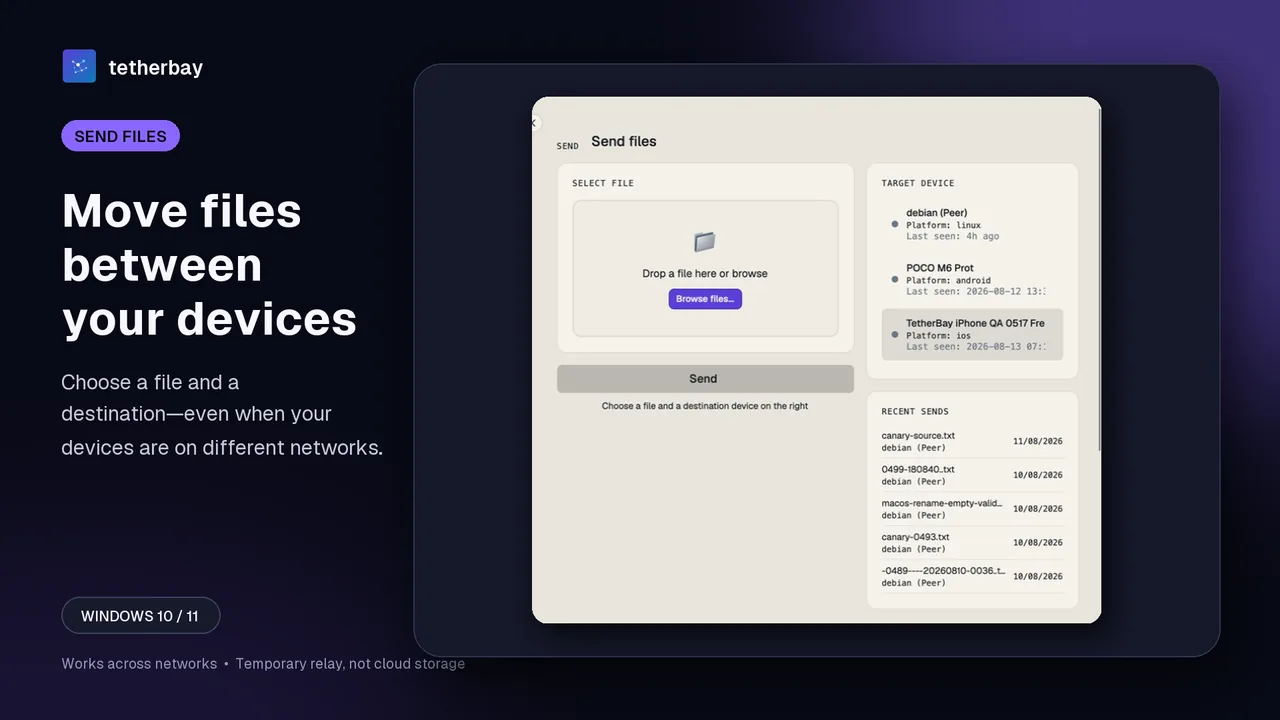
Foldpair is built for the case the tools above leave open: the PC and the phone are on different networks, and you want neither a cable nor a copy parked in a cloud drive. It has a Windows desktop client and a directly installable Android beta app. Transfers go through an authenticated temporary relay, and Foldpair is designed to work across different networks and alongside an existing VPN.
The relay is not a cloud-storage product. Folder and clipboard contents are encrypted on the device before they reach it, and the keys remain on your participating devices; the relay does see file names and sizes. When a desktop is offline, its folder changes wait on the relay in encrypted form and are delivered when it returns, within the relay retention period. See how Foldpair works and the encryption overview for the full boundary.
What the Android app does and does not do
- It sends and receives explicit one-off files through an outbox and an inbox.
- It works from a phone while the Windows device is on a different network.
- It is not a selected-folder sync client. Full mobile folder sync is not part of the current Android scope.
- Moving one file is a different job from mirroring a photo library or keeping a project folder in sync. Selected-folder sync is a feature of the desktop clients.
- Android is a beta app installed directly, and there is no publicly installable iOS release yet.
Set up a Windows and Android transfer with Foldpair
- Install the Windows client and the Android app from the download page.
- Sign in with the same account on both devices and pair them. The device pairing help shows the steps.
- On Windows, open Send files, choose a small test file, and select the phone as the target.
- On the phone, open the Foldpair app and find the received file. Open the file itself to check it arrived intact, rather than trusting a status message alone.
- Repeat in the other direction: send a small file from the phone to the PC.
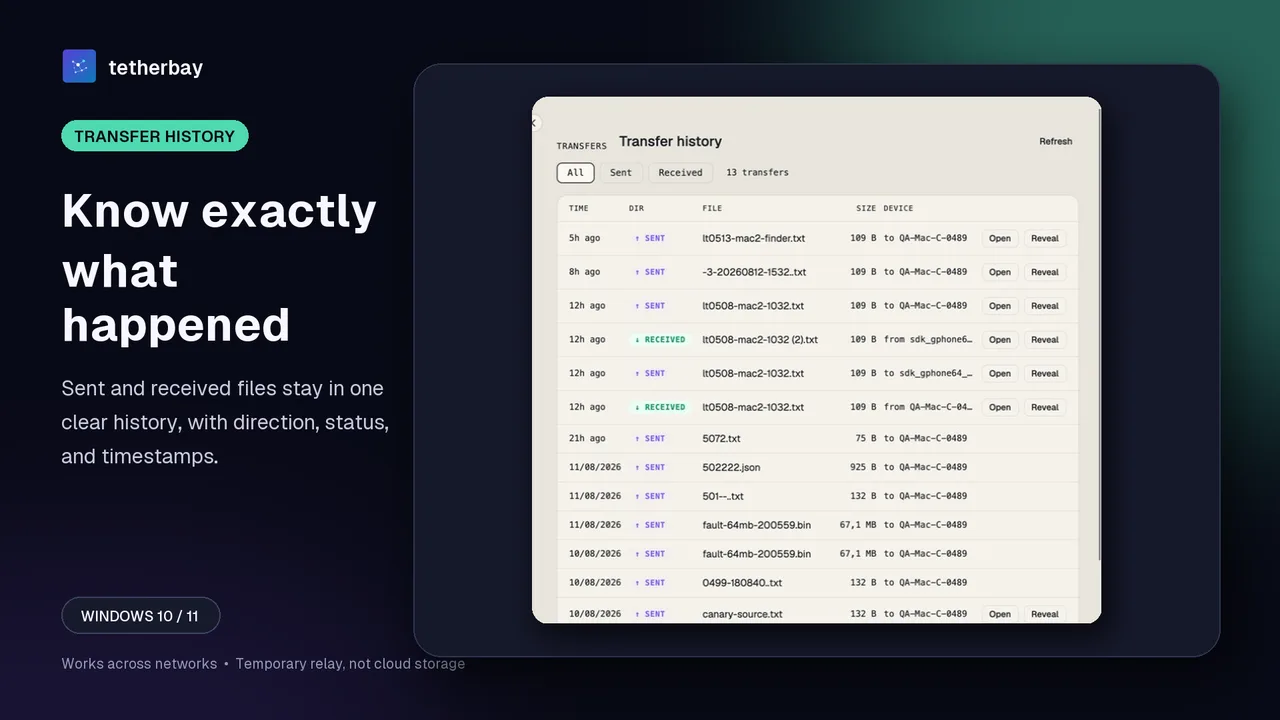
- If an item seems stuck, see Check sync status and the transfer history on the desktop. Keep a separate backup of anything irreplaceable.
Limits worth knowing before you start
The relay holds not-yet-delivered encrypted data up to a per-plan buffer: 1.5 GB in flight on Free and 10 GB on Pro. A single file larger than the free buffer space waits in the queue. Foldpair has a free plan and paid Pro and Team plans, and downloading needs no credit card.
Because the Android app is a one-off transfer tool, anything that needs ongoing two-way folder sync with a phone needs a different approach today.
When the other tool is the better choice
- Choose a USB cable for a very large one-time copy when the phone is within reach.
- Choose Quick Share for Windows when both devices are close, on the same network, and you are happy to use a Google account.
- Choose LocalSend for quick sends on one network with no account, including from a phone to a PC.
- Choose KDE Connect when you also want phone notifications and controls on the PC, and its Windows and Android builds suit you.
- Choose a cloud drive when you want the file available from any device, even with every device off, and accept that it lives in the provider's storage.
- Choose Foldpair when the PC and phone are on different networks and you want a one-off send without a cable or a stored copy in a cloud drive.
Frequently asked questions
How do I transfer files from Windows to Android without a cable?
Use Quick Share for Windows or LocalSend when both devices are nearby on the same network. When they are on different networks, use a relay-based tool such as Foldpair, or upload to a cloud drive and download on the phone.
Can I transfer files between Windows and Android on different networks?
Yes, with a tool built for it. Quick Share for Windows requires both devices on the same network, and LocalSend works over the local network. Foldpair is designed to work across different networks and is compatible with an existing VPN.
Does the Foldpair Android app sync folders?
No. The Android app supports one-off file inbox and outbox transfers. Full mobile folder sync is not part of the current Android scope; selected-folder sync is a feature of the desktop clients.
Do I need a cloud drive to move a file to my phone?
No. A cloud drive is one option, but a cable, Quick Share, LocalSend or Foldpair can move the file without storing it in a drive. Foldpair's relay is not a cloud-storage product.
Is it safe to try Foldpair on real files?
Start with a small test file, confirm it arrives intact on the other device, and keep a separate backup of irreplaceable data.
Can the relay read my files?
Folder and clipboard contents are encrypted on the device and the keys remain on your participating devices, so the relay cannot open them. It does see file names and sizes.
Related guides and comparisons
Sources and related reading
- Google Android Help: Share files between Android and Windows with Quick Share — Windows and Android requirements, Bluetooth, same-network and distance requirements, office Wi-Fi caveat; checked November 16, 2026.
- Google Android Help: Transfer files between Android and a computer by USB — USB File Transfer steps and the charge-only cable caveat; checked November 16, 2026.
- Google Drive Help: Upload files and folders — upload from a computer through drive.google.com; checked November 16, 2026.
- LocalSend official site — supported platforms, local-network transfer, no account; checked November 16, 2026.
- KDE Connect official site — file sharing, notifications, VPN option; platforms and network requirement not stated on the page; checked November 16, 2026.
- How Foldpair works — first-party relay and different-network explanation; checked November 16, 2026.
- Foldpair relay help — first-party description of relay buffering, offline delivery and visible metadata; checked November 16, 2026.