Owner, Editor, and Reader permissions compared
When a folder moves beyond your own laptops into client handoffs or multi-person projects, permissions matter as much as encryption. Foldpair assigns every member of a shared folder one of three roles—Owner, Editor, or Reader—and enforces write restrictions on the server rather than only hiding buttons in the desktop interface.
| Capability | Owner | Editor | Reader |
|---|---|---|---|
| Read and download synced files | Yes | Yes | Yes |
| Upload or edit files in the folder | Yes | Yes | No (server rejects uploads and edits) |
| Invite or remove other members | Yes | No | No |
| Change default scope, rename, or delete folder | Yes | No | No |
| Choose which of their own devices sync | Yes | Yes | Yes |
| Remove themselves from the folder | Only if another Owner remains | Yes | Yes |
| Receive your synced clipboard | Never (personal devices only) | Never (personal devices only) | Never (personal devices only) |
Read access is identical for every member on the folder: once someone accepts membership, all files inside that selected folder sync to the devices they enable. Role controls what a person is allowed to change, invite, or delete, as detailed on the member roles help page.
Your own devices vs. inviting another person
A common source of confusion in sync tools is mixing up device scoping with multi-user sharing. Foldpair treats them as two distinct controls in the folder's Access view, documented in the folder sharing help guide.
First, Sync to my devices applies only to computers already signed into your own Foldpair account. You can leave the default scope on all your devices or restrict a sensitive folder to selected machines only, with no invite link or acceptance prompt required. Second, Invite someone else generates a single-use invitation link (optionally delivered by email) that expires 7 days after creation by default.
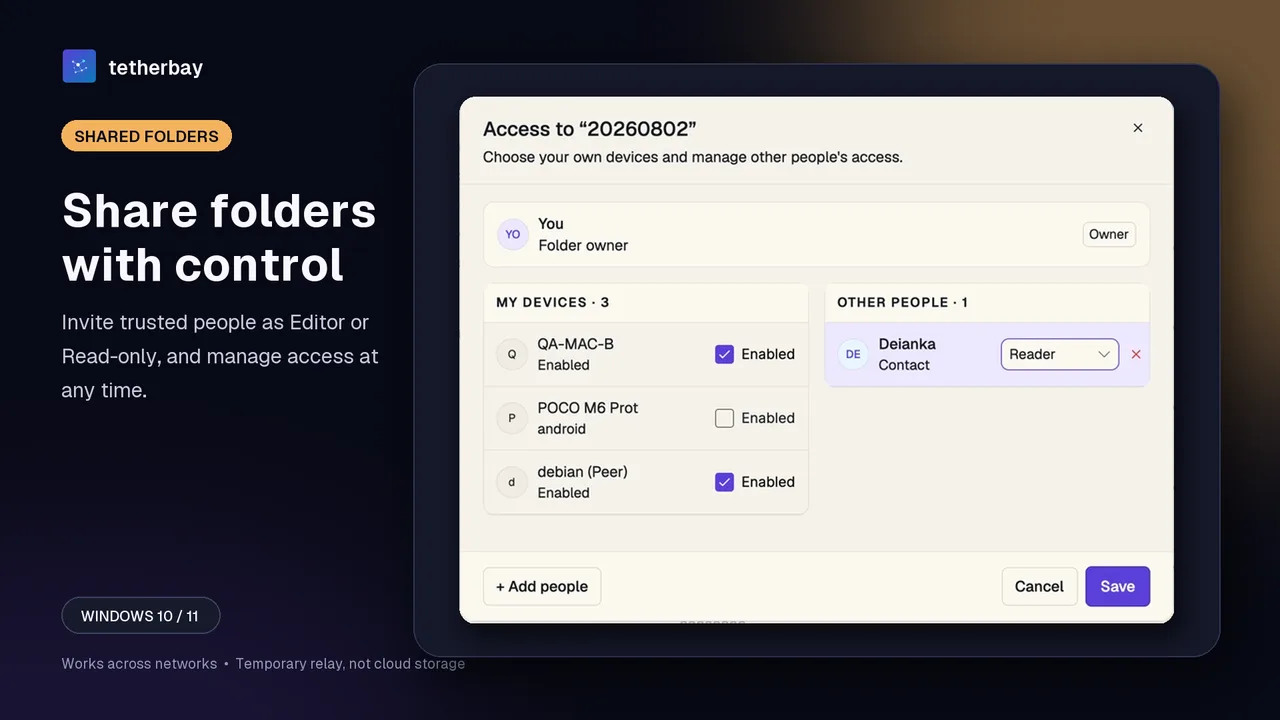
Nothing transfers silently when you generate an invite. The recipient opens the link, inspects who sent the invitation, which folder it covers, and which role (Reader or Editor) it grants, and only begins receiving files after explicitly accepting membership. Any member—Editor or Reader—can also leave a shared folder on their own at any time, and an Owner can revoke a pending invitation or remove another member to stop future updates from syncing to that account's devices. A shared folder is a copy on each member's devices, so only invite people you trust and keep separate folders for separate clients.
Device-side encryption without a cloud drive
Foldpair's relay is not a cloud-storage product with its own file browser or storage plans: working copies live on each participant's local disk, while the relay carries encrypted sync data between participating devices.
Before any folder payload leaves your Windows, macOS, or Linux computer, Foldpair encrypts file contents on the device with AES-256-GCM, and network transport is additionally protected with TLS. Encryption keys stay on the participating devices, so the relay handles ciphertext and cannot open file contents. Still, be clear about the metadata boundary when sharing client work: the relay does see file names and sizes, as explained in the encryption overview and Foldpair security.
Choosing Reader for clients vs. Editor for teammates
Read-only client handoffs (Reader). Design studios, legal or accounting practices, video editors, and engineering consultants often maintain a rolling deliverables directory. Inviting the client as a Reader lets new renders, reports, or build artifacts reach a local folder on their computer without giving them permission to overwrite or delete source deliverables. Foldpair is designed to work across different networks and is compatible with an existing VPN. The server rejects any upload or edit from a Reader, so a stray local edit will not reach your folder.
Two-way project collaboration (Editor). Co-founders, remote engineers, and research partners need to contribute changes back. Assigning the Editor role allows bidirectional syncing of additions and edits across Windows, macOS (Apple Silicon and Intel), and Linux (x64 and arm64) while keeping ownership controls—inviting new participants, renaming, or deleting the folder for everyone—restricted to the Owner.
When two Editors update a large asset such as a video container, CAD archive, or dataset, the desktop app can upload a FastRsync binary delta instead of the whole file whenever an earlier version is known. Changes made while a machine is offline wait on the relay in encrypted form and are delivered when it returns, within a retention period that depends on your plan (see relay help). Simultaneous edits and deleted items are covered in conflict resolution and trash recovery.
Step-by-step: share a folder safely
- Download Foldpair and install the desktop app on your computer; the Free plan ($0) requires no credit card to get started.
- Choose Add folder and pick a dedicated project or client handoff folder rather than your entire user profile directory.
- Open the folder's Access settings and confirm which of your own devices should hold a copy (Sync to my devices, see selective sync).
- Select Invite someone else, choose Reader for view-and-download client access or Editor for collaborative two-way changes, and send the single-use invite link.
- Wait for the recipient to open the link, review the displayed role, and explicitly accept membership on their Foldpair account.
- Verify the workflow with one small harmless test file first, confirm it arrives on the recipient's machine, and keep a separate backup of any irreplaceable files before placing live work inside the folder.
Keep an eye on relay buffer limits if you plan to push multi-gigabyte deliverables while a teammate's laptop is shut: the relay buffers up to 1.5 GB in flight on Free and 10 GB on Pro, and a single file larger than the free buffer space waits in the queue until space clears or devices come online. Check the relay buffer guide before syncing oversized video scratch files; the relay help also suggests excluding very large files that do not need to sync.
When a cloud drive or link-only tool is the better choice
Shared synced folders assume the recipient is willing to install Foldpair and keep a local copy on their Windows, macOS, or Linux computer. If a client only wants to preview a PDF or spreadsheet in a browser without installing software, or needs continuous folder sync on a phone or tablet, a web-first cloud drive fits that expectation better—note that Foldpair's Android app currently handles one-off inbox/outbox file transfers rather than full folder sync, and there is no public iOS release yet.
Enterprise compliance teams that require centralized corporate recovery keys, browser-based DLP scanning, or audit logs tied to an identity provider should also evaluate managed cloud storage or enterprise file-sharing platforms designed around central governance. Foldpair keeps keys on participating devices; the documentation we cite does not describe admin recovery keys, DLP or identity-provider audit logs.
Frequently asked questions
Can a Reader accidentally delete or overwrite files for the rest of the team?
No. A Reader can read and download files from the shared folder, and the server rejects any upload or edit from a Reader account—write enforcement happens on the server, not only in the UI.
Does a shared folder consume cloud storage quota?
No permanent cloud storage quota applies because Foldpair is not a cloud-storage service. Files live on participating devices' local disks; the temporary relay enforces only an in-flight delivery buffer (1.5 GB on Free, 10 GB on Pro).
Can someone I invite see my copied clipboard text or screenshots?
No. Clipboard sync works between your own devices only, with a per-device switch. Folder members never receive your clipboard.
What happens if an invite link expires or goes to the wrong person?
Invite links are single-use and expire after 7 days by default. Recipients must explicitly accept membership, and an Owner can revoke pending invites or remove any member from the Access dialog.
Can I share a folder with someone on a different network or VPN?
Foldpair is designed to work across different networks and is compatible with an existing VPN; behavior behind a specific firewall is not documented. See sync files across different networks.
What metadata can the relay see on a shared folder?
File contents are encrypted with AES-256-GCM on each device before upload, so the relay cannot read file contents. However, the relay does see file names and file sizes, as documented on the encryption page.
Related guides and comparisons
Sources and related reading
- Owner, Editor, and Reader — folder roles explained — first-party capability matrix for Owner, Editor, and Reader permissions and server-side write rejection; checked November 16, 2026.
- Two ways to share a folder — first-party distinction between Sync to my devices and Invite someone else, including 7-day single-use invite expiry; checked November 16, 2026.
- Clipboard sharing help — first-party confirmation that folder members never receive your synced clipboard; checked November 16, 2026.
- Foldpair relay help — first-party documentation of temporary buffering, 1.5 GB Free / 10 GB Pro in-flight limits, and metadata visibility; checked November 16, 2026.
- Foldpair security — first-party overview of AES-256-GCM device-side encryption and key locality; checked November 16, 2026.
- How Foldpair encryption works — first-party explanation of protected payloads and visible relay metadata; checked November 16, 2026.